7 Best USB-C Docking Stations of 2026
Sarah Chen reviews the best USB-C docking stations for home offices. Compare top-rated docks by display support, power delivery, port count, and laptop compatibility.
Updated
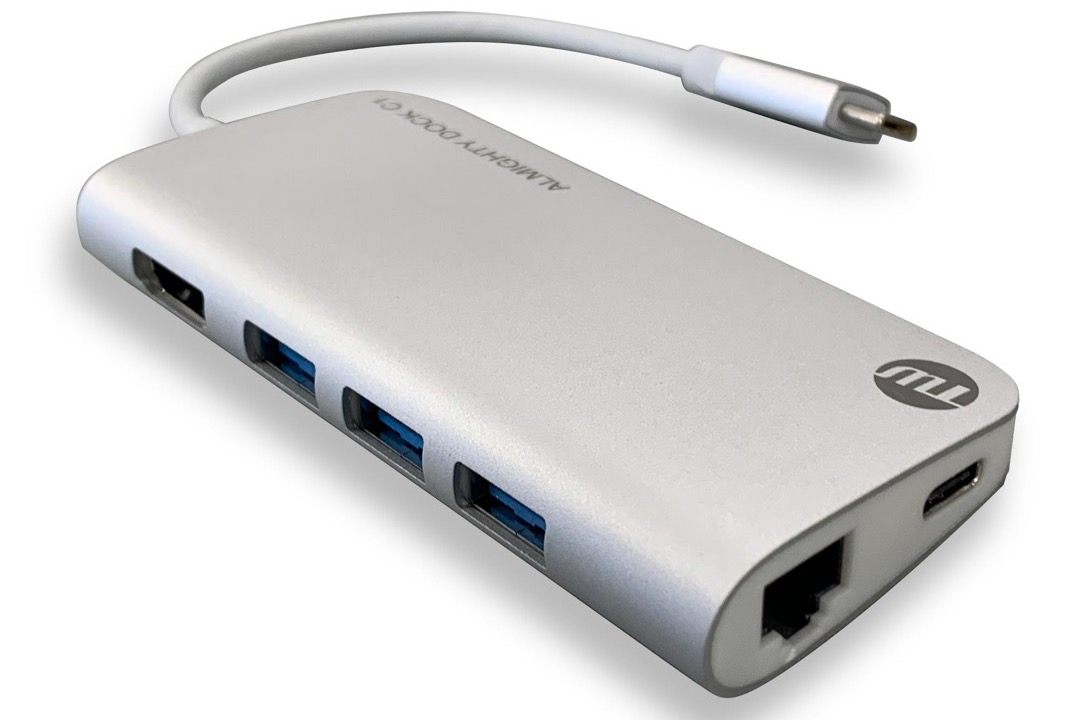
As a Certified Administrative Professional who has managed workspace technology transitions for distributed teams, I can tell you that the USB-C docking station is the single most consequential hardware decision in a modern home office setup. Not the chair, not the monitor — the dock. It determines whether your laptop becomes a full workstation the moment it touches your desk or whether you spend the next two years hunting for adapters and troubleshooting why your second monitor keeps mirroring instead of extending. In 2026, the USB-C docking station market has matured considerably, but it has also fragmented: the same product that works perfectly for a Windows user is the wrong choice for a MacBook user, and a dock that supports dual extended displays in one configuration may not in another. Getting this right the first time saves significantly more money than the price difference between any two docks on this list.
For this review, we evaluated seven of the best USB-C docking stations across a wide price spectrum — from compact plug-and-play hubs to professional-grade Thunderbolt docks. We analyzed display compatibility against specific laptop architectures, Power Delivery wattage against real-world charging requirements, port selection against common home office peripheral inventories, and long-term reliability against multi-thousand-review data sets. We gave particular attention to the Mac dual-display question, which is the most frequently misunderstood compatibility issue in this category and the most common source of post-purchase regret. If you are pairing your dock with an ergonomic keyboard, see our best ergonomic keyboards review for options that complement a single-cable desk setup, and our best monitor stands guide for display positioning that works alongside any dock configuration.
The core insight from our research: the $40 range is excellent for Windows users, and surprisingly capable for Mac users who only need one extended display. The $140-$170 range is where the Mac dual-display problem gets solved cleanly. The $380 CalDigit TS4 is for professionals where the dock is not a convenience item but part of a daily production workflow.
| Product | Price | Buy |
|---|---|---|
| Anker 8-in-1 USB-C Hub, Dual Monitor Docking StationBest Overall | $39.99 | View on Amazon |
| UGREEN Revodok Pro 210 Docking Station, 10-in-1 USB-C DockBudget Pick | $37.98 | View on Amazon |
| LIONWEI 13-in-1 USB-C Docking Station, Triple DisplayRunner-Up | $49.99 | View on Amazon |
| Anker 11-in-1 USB-C Hub, HDMI and DisplayPort Dual MonitorRunner-Up | $49.99 | View on Amazon |
| Anker Prime Docking Station, 14-Port with 160W Max OutputPremium Pick | $169.99 | View on Amazon |
| Plugable USB-C DisplayLink Docking Station, Dual 4K 60Hz (UD-6950PDH)Runner-Up | $143.96 | View on Amazon |
| CalDigit TS4 Thunderbolt 4 Docking Station, 18-PortRunner-Up | $379.99 | View on Amazon |
How We Chose These USB-C Docking Stations
Our selection process required meaningful differentiation across the seven products — no two docks on this list serve the same primary use case. We established minimum thresholds: 85W Power Delivery (sufficient for most modern laptops), at least one video output at 4K resolution, and Gigabit Ethernet for wired network stability. We required documented compatibility data from verified purchaser reviews rather than manufacturer claims alone, which is why we weighted review volume heavily — a dock with 300 reviews has not yet accumulated the edge-case failures that a 6,000-review product has already surfaced and addressed. We evaluated display technology claims specifically against M-series MacBook compatibility, which is systematically misrepresented in lower-quality product listings. Price-to-feature ratios were evaluated within tiers: comparing a $40 portable hub to a $380 Thunderbolt dock on the same scale produces misleading conclusions.
Anker 8-in-1 USB-C Hub — Best Overall
The Anker 8-in-1 earns the Best Overall position by doing what no other dock at this price does reliably at scale: dual HDMI to two 4K monitors, Gigabit Ethernet, SD card reading, and USB-A/USB-C data, all without drivers, all confirmed working by 6,200+ verified purchasers. For a Windows laptop user transitioning to a home office, this dock completes the hardware checklist in a single purchase.
The practical advantage over budget alternatives is the review volume. When you are spending $40, the difference between a dock that works and one that fails after six months is not visible in the spec sheet — it is visible in the 6,200-review data set that has already filtered out the failure modes. The Anker 8-in-1 has been through enough real-world use cycles that its limitations are well-documented: it runs warm under 4K dual-display load (a function of the MST hub circuitry, not a defect), and Mac users see mirrored rather than extended output. Those are not surprises; they are known constraints that affect a predictable subset of buyers.
The compact form factor is a secondary advantage for hybrid workers. At roughly the size of a thick thumb drive, it travels in a laptop bag without dedicated padding. For professionals who split time between home and office — or who carry their setup to client sites — a dock that doubles as a travel hub eliminates the need for a second adapter kit. Pair this with a monitor stand and an ergonomic keyboard and you have a complete single-cable desk setup for under $100 in peripherals.

Anker 8-in-1 USB-C Hub, Dual Monitor Docking Station
by Anker
Most-trusted budget dock — reliable dual HDMI, Ethernet, and SD in one plug-and-play package.
Pros
- Dual HDMI outputs deliver 4K video to two monitors simultaneously on Windows — plug-and-play with no drivers required
- Gigabit Ethernet port provides wired network stability critical for video calls and large file transfers over unreliable Wi-Fi
- SD and microSD card slots plus USB-A and USB-C data ports consolidate eight connections into a single cable
- Amazon's Choice designation backed by 6,200+ verified reviews is the strongest trust signal in the budget dock segment
Cons
- Mac users are limited to mirrored displays rather than true extended dual-monitor mode due to Apple Silicon architecture
- Unit runs noticeably warm during extended 4K dual-display sessions — not a thermal concern but worth noting for enclosed desk setups
UGREEN Revodok Pro 210 — Best Budget
The UGREEN Revodok Pro 210 occupies an interesting position: it is priced nearly identically to the Anker 8-in-1 but differentiates on specifications rather than review volume. The 4K@60Hz dual HDMI output is the meaningful spec upgrade — where the Anker delivers 4K@30Hz, the UGREEN delivers 4K@60Hz on both HDMI ports simultaneously. For video editors, motion designers, or anyone doing work where display smoothness at 4K matters, this 30Hz-to-60Hz gap is noticeable in daily use.
The aluminum housing is a build quality signal that goes beyond aesthetics. Aluminum bodies dissipate heat more effectively than plastic enclosures — important for a device that runs continuously and handles significant data and power throughput simultaneously. At this price point, seeing aluminum construction is unusual enough that it functions as a quality differentiator. The 100W Power Delivery wattage also edges out the Anker’s 85W, covering the MacBook Pro 14-inch at full charge speed.
The caveat is the green tint issue on M1 Macs. This is a documented limitation in UGREEN’s M1 compatibility, affecting one display with a visible color artifact under specific driver conditions. It does not affect M2/M3/M4 MacBooks or Windows laptops, and UGREEN has issued firmware updates addressing partial improvements — but if you are on M1, the Anker 8-in-1 is the safer choice. For Windows users at this price, the UGREEN is the stronger buy.

UGREEN Revodok Pro 210 Docking Station, 10-in-1 USB-C Dock
by UGREEN
Best-rated budget dock for Windows users wanting 4K@60Hz dual display and aluminum build under $40.
Pros
- Dual 4K@60Hz output on both HDMI ports — the highest frame rate available at this price point, meaningful for video editors and motion-heavy workflows
- Aluminum housing dissipates heat more effectively than plastic alternatives and gives the dock a premium feel disproportionate to the price
- 100W Power Delivery covers most modern laptops including MacBook Pro 14-inch at full charge speed
- Highest rating (4.4 stars) among budget docks on this list, with consistently positive Windows compatibility reports in reviews
Cons
- Some M1 MacBook users report a green tint artifact on one display — a known Apple Silicon driver interaction that UGREEN has not fully resolved
- Long-term durability reports are mixed at the 12-month mark — the port connector on some units shows wear earlier than the Anker
LIONWEI 13-in-1 Triple Display Dock — Runner-Up
The LIONWEI 13-in-1 addresses a specific and legitimate use case: the home office user who needs three monitors and cannot justify a Thunderbolt dock. Triple display via two HDMI outputs plus a USB-C video port is a configuration that no other budget dock on this list supports, and for a certain profile of Windows power user — developers, financial analysts, project managers running multiple application windows simultaneously — a third monitor is not a luxury but a workflow requirement.
The 10,000+ review count is the most significant trust signal of any dock on this list by raw numbers. A product with that review volume has been stress-tested by an unusually diverse set of use cases, connection configurations, and laptop models. The 4.1-star average on that volume means a meaningful percentage of those reviewers encountered issues — and the most commonly cited issue is HDMI port degradation at the 6-12 month mark. This is a real pattern worth factoring into the purchase decision. For buyers who cycle hardware annually or who would replace a $50 dock after two years without significant financial regret, the LIONWEI is still a strong choice. For buyers who purchase once and expect five-plus years of service, the durability data warrants consideration.
The large footprint is the physical trade-off for 13 ports. This dock sits on your desk surface — it does not travel with your laptop. For a standing desk setup where desk real estate is actively managed, account for the space it occupies before purchasing.

LIONWEI 13-in-1 USB-C Docking Station, Triple Display
by LIONWEI
Most battle-tested dock by review count — triple display and 13 ports for Windows users under $55.
Pros
- Triple display support (2x HDMI + USB-C video) is unique at this price — enables a three-monitor home office setup without a premium Thunderbolt dock
- 13 ports is the most generous port count under $55, covering every standard home office peripheral without a secondary hub
- Over 10,000 verified reviews provides the largest real-world reliability data set of any dock on this list
- Works with Linux and ChromeOS in addition to Windows — a practical advantage for developers running multiple operating systems
Cons
- Multiple long-term reviewers report HDMI port failure after 6+ months of daily use — a durability pattern worth monitoring given the review volume
- Large footprint occupies meaningful desk real estate — not the right choice for minimalist desk setups or small workstations
Anker 11-in-1 HDMI + DisplayPort Hub — Runner-Up
The Anker 11-in-1 solves a specific hardware mismatch that more home office setups encounter than is typically acknowledged: one monitor with HDMI, one with DisplayPort. This is common when buyers mix monitors across generations — a newer ultrawide with DisplayPort and an older 27-inch with only HDMI, or a primary monitor with DP and a secondary display repurposed from an older setup. Every other budget dock on this list requires two HDMI monitors. The Anker 11-in-1 requires one of each, which matches a significant real-world inventory pattern.
The 10Gbps USB data ports are the second differentiator. Budget docks typically provide USB 3.0 (5Gbps) data transfer speeds. The Anker 11-in-1 provides 10Gbps on both its USB-A and USB-C data ports — a meaningful difference when transferring large video files, offloading camera media, or backing up external drives. If data transfer speed is part of your regular workflow alongside display connectivity, this dock provides both at a mid-range price.
The 3.5mm audio jack is a small but practical addition. In a home office where the laptop is closed in clamshell mode behind monitors, reaching around to plug a headset directly into the laptop is awkward. Having the audio jack on the dock, sitting on the desk surface in reach, eliminates that friction. For professionals who spend meaningful portions of the workday on calls, this convenience compounds across thousands of connect-disconnect cycles.

Anker 11-in-1 USB-C Hub, HDMI and DisplayPort Dual Monitor
by Anker
Smartest choice for mixed HDMI/DisplayPort monitor setups, plus fastest 10Gbps data ports under $55.
Pros
- Combined HDMI + DisplayPort output serves mixed monitor environments — users with one HDMI and one DP monitor connect both without adapters
- 10Gbps USB data ports (2x USB-A + 1x USB-C) are the fastest data transfer speeds available in the budget dock segment
- 3.5mm audio jack enables direct headset connection without occupying a USB port — a meaningful convenience for video call-heavy work schedules
- Anker's established reliability reputation with 2,300+ reviews provides strong confidence for a mid-range purchase
Cons
- 85W Power Delivery may be insufficient for high-TDP laptops under sustained load — not recommended for gaming laptops or workstation-class machines
- Requires one HDMI and one DisplayPort monitor — buyers with two HDMI monitors need the Anker 8-in-1 or UGREEN instead
Anker Prime Docking Station — Best Upgrade
The Anker Prime is the correct dock for the buyer who has exhausted the budget segment and needs a specific capability that $40-$55 docks cannot reliably deliver: 140W Power Delivery for a MacBook Pro 16-inch, all ports simultaneously at 10Gbps bandwidth, and a desktop form factor designed for permanent installation rather than occasional travel. At this price, you are paying for engineering headroom — the Prime is designed to handle sustained maximum load without thermal throttling or bandwidth degradation.
The front LCD is genuinely useful in a way that sounds gimmicky until you use it. When a high-wattage laptop charges slowly or a USB transfer is unexpectedly sluggish, the diagnostic process normally involves unplugging and replugging devices, testing different ports, and checking system information panels. The LCD shows you the current power draw and USB speeds in real time. That diagnostic information — visible at a glance without opening any software — is a meaningful productivity tool for a professional who connects and disconnects devices throughout the workday.
The Thunderbolt limitation is the honest constraint at this price. For Mac users who need true dual extended display without a DisplayLink driver, only a Thunderbolt dock delivers that natively. The Anker Prime, despite its premium positioning, uses USB-C and inherits the Apple Silicon single-display restriction. Mac users with dual-monitor requirements should consider the Plugable DisplayLink dock (driver-based, confirmed dual extended) or the CalDigit TS4 (Thunderbolt, native). For Windows users or Mac users running a single external display, the Anker Prime is the strongest non-Thunderbolt dock at any price.

Anker Prime Docking Station, 14-Port with 160W Max Output
by Anker
Best non-Thunderbolt premium dock — 14 ports, 140W charging, LCD readout, undercuts Thunderbolt alternatives by $200.
Pros
- 140W upstream charging powers a MacBook Pro 16-inch at full speed — the highest Power Delivery wattage on this list and sufficient for any current laptop
- Front LCD panel displays real-time power output and USB data speeds — eliminates guesswork when diagnosing slow charging or transfer issues
- All data ports operate at 10Gbps simultaneously — no bandwidth throttling under combined load unlike most budget docks
- Desktop form factor with ventilation slots dissipates heat effectively during extended high-load sessions
Cons
- Not Thunderbolt — Mac users are limited to single extended display (same Apple Silicon restriction as other USB-C docks)
- Multiple reports of connectivity issues with Microsoft Surface devices — Surface users should verify compatibility before purchasing
Plugable UD-6950PDH DisplayLink Dock — Best for Mac Dual Display
The Plugable UD-6950PDH exists to solve one problem: giving M-series MacBook users genuine dual extended display without spending $380 on a Thunderbolt dock. DisplayLink technology achieves this by routing video through a software driver rather than the native GPU pipeline, bypassing the Apple Silicon single-display hardware limitation entirely. The result is true dual extended display on every M-series MacBook — M1, M2, M3, M4, M5 — confirmed by users across all generations in the review base.
The driver requirement is the operational trade-off. DisplayLink software must be installed on the Mac before the dock functions for video output. The installation is straightforward — a standard macOS package installer — but it requires active maintenance: when Apple releases a major macOS update, the DisplayLink driver may need to be updated separately. For the majority of buyers who update macOS once or twice per year, this is a 10-minute annual maintenance task, not an ongoing burden. For buyers who expect zero-touch plug-and-play operation with no software dependencies, the driver requirement is a genuine friction point.
The switchable HDMI/DisplayPort output is a practical feature for mixed monitor environments. Each of the two video ports can be configured independently for HDMI or DP output, which means this dock works with any monitor combination without adapters. The 100W Power Delivery and Gigabit Ethernet round out a well-specified package. The USB-A-only data ports are the limitation to note — users with USB-C peripherals will need to verify compatibility or use adapters.

Plugable USB-C DisplayLink Docking Station, Dual 4K 60Hz (UD-6950PDH)
by Plugable
Go-to DisplayLink dock for Mac users needing true dual extended display on M-series MacBooks.
Pros
- True dual extended display on all M-series MacBooks (M1 through M5) — the only sub-$200 dock on this list that confirms this capability
- Switches seamlessly between MacBook and Surface connectivity — validated by users running both platforms at the same desk
- Selectable HDMI or DisplayPort output modes accommodate either monitor type on each video port
- 100W Power Delivery covers MacBook Pro 14-inch and most Windows ultrabooks at full charge speed
Cons
- DisplayLink driver installation is required — not plug-and-play, and driver updates occasionally require manual reinstallation on macOS updates
- USB-A only for data ports — no USB-C data passthrough, which limits connectivity for users with USB-C peripherals
CalDigit TS4 Thunderbolt 4 Dock — Best for Thunderbolt MacBooks
The CalDigit TS4 is not competing in the same purchase decision as the other docks on this list. It costs more than the next most expensive option and roughly nine times more than the budget picks. It belongs on a list of USB-C docking stations because it represents what the category looks like when the cost and capability constraints of the USB-C standard are removed entirely: 18 ports, 40Gbps Thunderbolt bandwidth, 2.5GbE Ethernet, SD UHS-II, and zero driver or compatibility issues on any macOS version.
The 2.5GbE Ethernet is the spec most buyers overlook. Standard Gigabit Ethernet caps at 125 MB/s transfer throughput — adequate for most workflows. The TS4’s 2.5GbE port delivers up to 312 MB/s, which is relevant for users with NAS systems, large media file transfers, or offices with 2.5GbE network infrastructure. Photographers and videographers moving 50GB+ camera media to network-attached storage regularly will notice this throughput difference in real time.
The 18-port count enables a permanently docked configuration that eliminates connection friction entirely. Every peripheral — monitors, keyboard, mouse, audio interface, external storage, card readers, Ethernet — connects to the dock once. The laptop connects to the dock with a single Thunderbolt cable. Disconnect and go; reconnect and everything is live again. At the workload level where this dock makes financial sense — professional creative work, software development, finance and analysis — the productivity value of zero-friction reconnection compounds meaningfully across a 250-day work year. Pair the TS4 with a high-quality standing desk and a monitor stand that supports dual display positioning, and you have a professional workstation that rivals a fixed desktop setup.

CalDigit TS4 Thunderbolt 4 Docking Station, 18-Port
by CalDigit
Ultimate dock for Thunderbolt MacBook users — 18 ports, 2.5GbE, flawless Mac compatibility for desk-bound professionals.
Pros
- 18 ports on a single Thunderbolt cable is the highest port density of any dock in this category — all peripherals connect permanently, laptop plugs in once
- 2.5GbE Ethernet delivers 2.5x the throughput of standard Gigabit — meaningful for NAS users, large file transfers, and bandwidth-intensive video workflows
- SD UHS-II slot (312 MB/s read) is the fastest card reader on this list — significant for photographers and videographers offloading large media files
- Zero driver issues on macOS and native dual extended display support on all M-series MacBooks via Thunderbolt
Cons
- Requires a Thunderbolt 3 or 4 port — incompatible with USB-C-only laptops, which excludes a large portion of Windows ultrabooks
- Runs warm under full load and costs roughly nine times more than the budget picks — a serious investment requiring a matching professional use case
How to Choose the Best USB-C Docking Station
The buying decision comes down to three variables in priority order: display configuration compatibility, Power Delivery wattage, and port inventory. Get those right for your specific laptop and workflow and the remaining specifications are secondary optimizations.
Display configuration first. Identify your laptop (Mac or Windows, and if Mac, which generation) and your monitor setup (how many displays, what connection types). Windows users with two HDMI monitors: any budget dock works. Windows users with HDMI + DP monitors: the Anker 11-in-1 is designed for you. Mac users needing dual extended display: Plugable DisplayLink (with driver) or CalDigit TS4 (Thunderbolt, if your laptop has a TB port). Mac users running a single external display: any USB-C dock works including the $40 options.
Power Delivery second. Check your laptop’s maximum charge rate in its specifications. If your dock’s PD wattage matches or exceeds that number, your laptop charges at full speed while docked. If it falls short, your laptop will charge slowly or drain under load. This matters most for MacBook Pro 16-inch users and gaming laptop users where high PD wattage is not optional.
Port inventory third. Count your daily-connected peripherals and verify the dock has matching ports. Ethernet is non-negotiable for stable video call quality — any dock without it requires a separate adapter. Beyond that, match USB-A and USB-C port counts to your keyboard, mouse, storage, and audio peripherals.
Buyer's Guide
Choosing the right USB-C docking station requires matching the dock's display technology, Power Delivery wattage, and port layout to your specific laptop and monitor setup — the most common buyer regret comes from purchasing a dock that cannot support the display configuration the buyer assumed it would.
Display Technology and Laptop Compatibility
The most consequential spec in USB-C dock selection is whether the dock can drive your monitors in the configuration you want. On Windows laptops, any USB-C dock with two video outputs will run dual extended displays. On M-series MacBooks, only DisplayLink docks (with driver) and Thunderbolt docks (native) support true dual extended display — standard USB-C docks mirror instead of extending. Verify your laptop's port type (USB-C vs Thunderbolt) and your Mac generation before purchasing. This single specification determines whether a $40 dock will meet your needs or whether you need to step up to DisplayLink or Thunderbolt.
Power Delivery Wattage
Power Delivery wattage determines whether the dock can charge your laptop at full speed while simultaneously powering connected monitors and peripherals. Match the dock's PD rating to your laptop's maximum charge rate: 65W covers most thin-and-light Windows laptops, 85-100W covers MacBook Pro 14-inch and mid-range Windows laptops, and 140W is required for MacBook Pro 16-inch under load. Under-specifying PD means your laptop will charge slowly or drain during heavy use even when connected to the dock. Over-specifying costs more but provides headroom for future laptop upgrades.
Port Selection and Layout
Assess which peripherals you connect daily and verify the dock provides matching ports. A home office setup running a monitor, keyboard, mouse, external storage, and wired network needs at minimum: two USB-A ports, Ethernet, and a video output. Adding a second monitor, SD card reader, and headset requires a larger dock. Check whether the dock provides USB-A or USB-C data ports — older peripherals use USB-A, while newer devices increasingly require USB-C. A dock with only USB-A data ports limits connectivity for users with USB-C accessories.
Connection Technology: USB-C vs Thunderbolt 4
USB-C docks work with any laptop that has a USB-C port, making them broadly compatible but capped at USB-C bandwidth (typically 10Gbps data, standard display protocols). Thunderbolt 4 docks require a Thunderbolt-capable port and deliver 40Gbps bandwidth, native dual extended display on Macs, and daisy-chaining capability. If your laptop has a Thunderbolt port and your workflow involves large file transfers, professional media work, or macOS dual display requirements, the Thunderbolt premium is justified. For standard office productivity on Windows, USB-C bandwidth is sufficient for every common task.
Form Factor: Portable Hub vs Desktop Dock
USB-C hubs and docks serve different use patterns. Portable hubs are compact enough to travel — useful for remote workers who carry their setup between home, office, and client sites. Desktop docks are larger, heavier, and designed to stay on your desk permanently. Desktop form factors generally handle heat better under sustained high-load use. If you work from a single location, a desktop dock's thermal management and stability advantages are worth the size. If you travel regularly with your laptop, a portable hub is the practical choice.
Build Quality and Long-Term Reliability
USB-C docks see significant mechanical stress — the cable is connected and disconnected repeatedly, and the dock itself runs continuously under moderate electrical load. Aluminum-bodied docks handle both thermal and mechanical stress better than plastic alternatives over time. Review volume is the most reliable long-term reliability proxy: the Anker 8-in-1 at 6,200+ reviews and the LIONWEI at 10,000+ reviews provide a substantially larger failure data set than newer entrants. Brands with established warranty support (Anker, CalDigit, Plugable) provide meaningful recourse if issues develop after the return window closes.
Final Verdict
For the majority of home office professionals in 2026 — running a Windows laptop or a Mac with single external display requirements — the Anker 8-in-1 is the right purchase. It delivers dual HDMI, Gigabit Ethernet, SD card reading, and USB connectivity in a plug-and-play package, with 6,200+ verified reviews confirming reliable performance at a price point that represents no meaningful financial risk. The compact form factor doubles as a travel hub for hybrid workers.
Mac users who need genuine dual extended displays should go straight to the Plugable UD-6950PDH. The driver installation is a one-time setup, and the confirmed M-series compatibility across all MacBook generations makes it the only sub-$200 dock that solves this problem definitively. If your workflow justifies the investment and your MacBook has a Thunderbolt port, the CalDigit TS4 eliminates every compatibility question and delivers a permanent docking experience that matches a fixed desktop workstation.
As with any workspace technology decision, match the product to your actual use case rather than the highest specification you can justify. A dock that exceeds your display and connectivity requirements costs more and adds no functional value. Identify your laptop, your monitors, and your peripheral inventory — the correct choice will be clear from that framework. For a complete desk upgrade, see our reviews of the best ergonomic keyboards and best monitor stands to complete the single-cable workstation setup.
Frequently Asked Questions
Will a USB-C dock work with my MacBook for dual extended displays?
How much Power Delivery wattage do I actually need?
What is the difference between USB-C and Thunderbolt 4 docks?
Do USB-C docking stations work with Windows laptops?
What does 'driver required' mean and should I avoid it?
Related Articles
About the Reviewer

Sarah Chen, CAP, PMP
B.A. Business Administration, UCLA
Sarah Chen spent 10 years in office management and operations at Fortune 500 companies before founding DeskRated in 2026. After managing supply budgets for teams of 50+ people and testing thousands of products through daily use, she started writing the honest, no-fluff supply reviews that office professionals actually need. Sarah holds both CAP and PMP certifications and is based in Los Angeles.