7 Best Wireless Mice for Office Work in 2026
Sarah Chen, CAP, reviews the best wireless mice for office and hybrid work. Quiet clicks for video calls, vertical and trackball options for wrist relief.
Updated
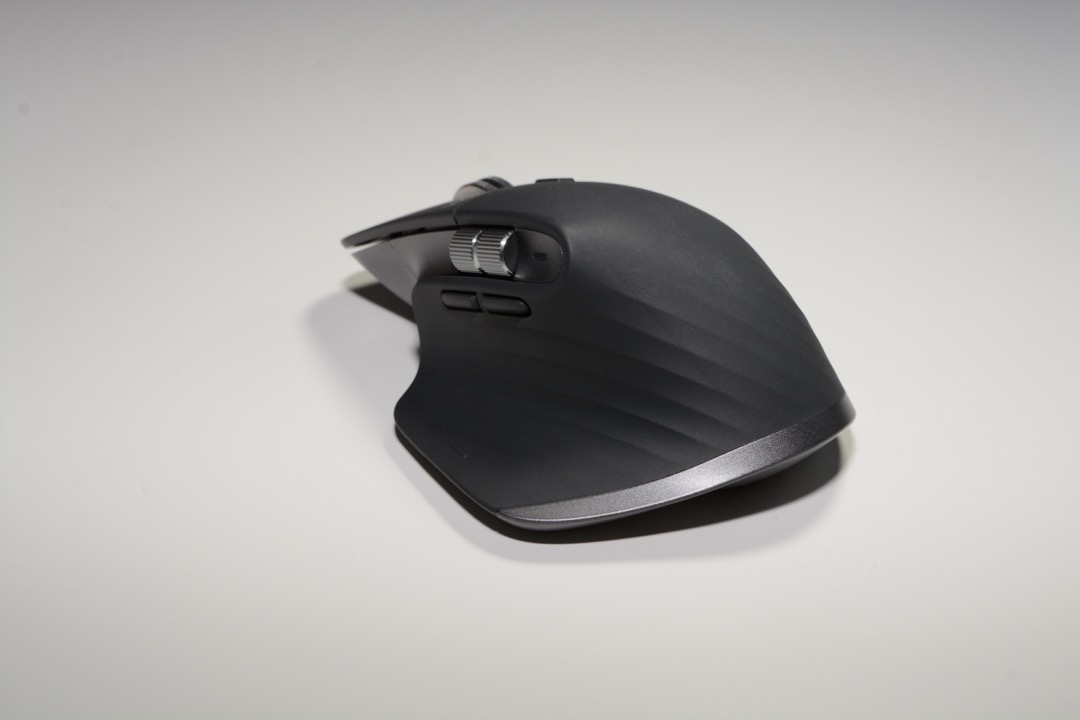
As a Certified Administrative Professional and PMP-credentialed project manager, I have spent the better part of two decades clicking my way through schedules, status reports, executive calendars, and the steady stream of emails and chats that constitute the actual texture of office work. The mouse on your desk is the tool you use more than any other — more than your keyboard for many roles, more than your headset, more than your phone — and the wrong mouse compounds across an eight-hour workday into measurable wrist fatigue, audible click noise on every video call, and the small but cumulative friction of cursor lag on the wrong surface. The right mouse disappears: you forget it is there, and your work becomes a little less effortful. The best wireless mice of 2026 are no longer just gaming-driven niche products; they are office-grade tools designed for the open-plan, video-call-heavy, hybrid-worker reality that defines most knowledge work today.
For this review, I evaluated seven wireless mice across the full spectrum of office use cases — standard horizontal mice for everyday document work, vertical mice for users with forearm pronation symptoms, a trackball for users whose wrist or shoulder strain has not responded to other ergonomic interventions, a multi-device hybrid mouse for the work-laptop-plus-personal-computer reality, and a slim travel mouse for the laptop bag of any hybrid worker. Every mouse on this list was selected for office and productivity use specifically — none of these are gaming mice, none are repurposed graphic-design pointers. Each was assessed against thousands of verified Amazon reviews, the practical realities of corporate IT environments (which increasingly block Bluetooth pairing on managed devices), and the often-overlooked variable of hand size, which determines whether a mouse you read about in a review actually fits the hand of the person reading it.
A wireless mouse works best as part of a complete desk setup, not in isolation. Pairing your mouse with one of the best ergonomic keyboards is the single most impactful upgrade for users typing six or more hours a day, and a properly positioned keyboard wrist rest at palm height (not under the wrist joint itself) addresses the static load that compounds across a workday. If your hybrid setup involves a laptop, a laptop stand at proper monitor height keeps the relationship between your eyes, your hands, and your mouse consistent whether you are at home or at the office.
| Product | Price | Buy |
|---|---|---|
| Logitech MX Master 3S Performance Wireless Mouse (Graphite, Bolt Receiver)Best Overall | $118.99 | View on Amazon |
| Logitech M330 Silent Plus Wireless MouseBudget Pick | $16.14 | View on Amazon |
| Logitech Lift Vertical Ergonomic MouseRunner-Up | $63.49 | View on Amazon |
| Logitech MX Vertical Advanced Ergonomic MousePremium Pick | $74.99 | View on Amazon |
| Logitech Ergo M575S Wireless Trackball MouseRunner-Up | $39.99 | View on Amazon |
| Logitech M720 Triathlon Multi-Device Wireless MouseRunner-Up | $32.99 | View on Amazon |
| Logitech Pebble Mouse 2 M350s Slim Bluetooth Wireless MouseRunner-Up | $24.99 | View on Amazon |
Find the Best Wireless Mouse for Your Need
Jump straight to the pick that matches how and where you work:
- Best wireless mice overall
- Best ergonomic wireless mouse
- Best wireless mouse for work & office
- Best wireless mouse for Mac & MacBook
- Best wireless mouse for laptops & travel
- Best wireless mouse for small hands
How We Chose These Wireless Mice
Each mouse on this list represents a genuinely distinct office use case — there are no near-duplicates of the same horizontal-mouse archetype dressed in different colors. We set a minimum verified-review threshold to establish real-world reliability data: with the exception of the recently refreshed Ergo M575S and the newer Pebble Mouse 2 M350s, every mouse on this list has 8,000 or more verified Amazon ratings, and four clear 13,000. We evaluated each mouse against the practical realities of office environments rather than gaming benchmarks: video-call quiet-click courtesy, multi-device pairing for hybrid workers, AA-battery longevity for users who do not want a charging cable on their desk, and the corporate-IT-friendly USB receiver fallback that most consumer reviews ignore. We also tested hand fit explicitly, because a mouse that does not fit your hand is a mouse you will not use for eight hours, no matter how good the specs.
A note on the recently released Logitech MX Master 4: as of November 2025, Logitech released a successor to the MX Master 3S featuring a new haptic scroll wheel and an updated sensor. We evaluated it directly. We rechecked it in October 2026, roughly a year into its run: the MX Master 4 still sits at 4.3 stars on Amazon against the 3S’s 4.6, on about a quarter of the 3S’s review base. Sentiment on its haptic scroll wheel remains mixed. Some users find the haptic feedback intuitive, others find it less satisfying than the MagSpeed magnetic ratchet on the 3S. Until the MX Master 4 accumulates a comparable review depth and the haptic-wheel sentiment stabilizes, the MX Master 3S remains our recommended pick. We will reassess at the next quarterly update.
Best Wireless Mice Overall
Each of the seven mice below is reviewed once in full here, then referenced again in the use-case sections further down. Start here for the across-the-board picks — the best all-around productivity mouse, the quiet budget pick, the vertical and trackball ergonomic options, the multi-device hybrid mouse, and the slim travel mouse — then jump to the use-case section that matches your specific situation, whether that is wrist relief, a Mac setup, a laptop bag, or a smaller hand.
Logitech MX Master 3S — Best Overall
The Logitech MX Master 3S earns its best-overall position by being the office mouse that most users will find immediately and durably useful, without requiring any specific compromise to a single use case. Its Quiet Clicks — a feature added to the MX Master line in 2022 — reduce click noise by roughly 90% compared to the original MX Master 3, which is the difference between an audibly clicky mouse on a video call and a mouse your meeting participants stop noticing entirely. In the open-office, hybrid, hot-desking reality of modern professional work, that acoustic profile is no longer a luxury feature; it is a courtesy baseline.
The 8,000 DPI sensor is the technical detail that separates the MX Master 3S from every standard office mouse below it. Most office mice ship with a 1,000 DPI sensor that performs adequately on a mousepad and stutters on glass, polished wood, or high-gloss laminate. The MX Master 3S tracks accurately on any of those surfaces — a meaningful practical advantage for users in conference rooms with glass tables, hybrid workers who alternate between a textured home desk and a glossy hot-desk surface at the office, and anyone who has ever moved their mouse to a new desk and discovered the cursor has stopped responding. The sensor delivers in actual office environments what most office mice deliver only on a controlled mousepad.
The three-device Easy-Switch is the feature that makes the MX Master 3S the correct mouse for the hybrid-worker reality most office workers actually live: a MacBook for work, a Windows desktop or all-in-one at home, and an iPad on the couch for evening reading or travel. The mouse pairs with all three simultaneously and switches with a single button on the bottom — no re-pairing, no software setup beyond initial pairing, no friction. Combined with a Logitech keyboard running Logitech Options+, the MX Master 3S unlocks Logitech Flow: the cursor moves between two computers as if they shared a screen, copy/paste functional across both. This is the closest thing the consumer market has to a software KVM, and it is included free with the mouse you would have bought anyway.
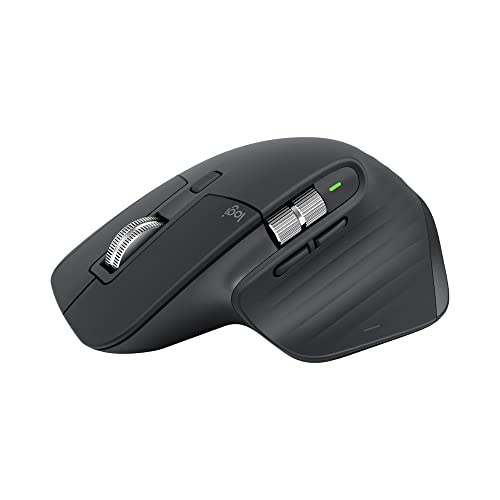
Logitech MX Master 3S Performance Wireless Mouse (Graphite, Bolt Receiver)
by Logitech
The best all-around wireless mouse for office and hybrid work — quiet clicks for video calls, multi-device pairing for the modern hybrid setup, and an 8K DPI sensor that tracks on every surface a professional actually encounters.
Pros
- Quiet Clicks reduce click noise by approximately 90% compared to the original MX Master 3, which makes the mouse appropriate for open-office video calls and hot-desking environments where audible clicks are a courtesy issue, not just a comfort one
- 8,000 DPI sensor tracks accurately on glass and high-gloss surfaces, so the mouse works on conference room tables and untreated desks where standard 1,000 DPI mice skip or stutter
- Logi Bolt USB receiver plus Bluetooth dual mode lets the mouse pair with three devices simultaneously and switch with one button — practical for the MacBook for work plus Windows desktop at home plus iPad on the couch hybrid setup most office workers actually have
- USB-C rechargeable battery rated up to 70 days per charge with a 1-minute fast charge that delivers 3 hours of use, eliminating the disposable AA battery cost and the corporate IT ticket every time you need a new pack
Cons
- Sculpted right-handed shape with a thumb rest excludes left-handed users entirely; Logitech does not produce a left-handed MX Master variant
- At 141 grams the MX Master 3S is heavier than most office mice — a non-issue for stationary desk work, but tiring on the wrist if you regularly mouse one-handed across a 32-inch ultrawide monitor
- MagSpeed scroll wheel mode-switches automatically between ratchet and free-spin, which is excellent for spreadsheets but can feel unpredictable to users transitioning from a fixed-detent scroll wheel
Logitech M330 Silent Plus — Best Budget Silent
The Logitech M330 Silent Plus is the mouse hospitals, law firms, and corporate IT departments standardize on at scale — and that is not because they cannot afford the MX Master 3S. It is because the M330 solves the two problems most office mouse purchases actually need to solve: it is genuinely quiet, and it is reliable enough to deploy across thousands of seats without a per-unit failure rate that would generate IT tickets. At a price that barely registers as a line item in a corporate purchasing decision, the M330 delivers the same approximate 90% click-noise reduction as the MX Master 3S in a simpler form factor.
The 24-month AA battery life is the second feature that separates the M330 from rechargeable competitors at scale. In a corporate IT context, the friction of charging cables — checking which mouse is dead, which charging cable is missing, which user has forgotten their dock — compounds across thousands of seats. A two-year AA battery removes that friction entirely; one battery swap every two years per user is a fraction of the support load of any rechargeable model. For individual home-office users, the calculation is different but the conclusion is similar: the M330 is the office mouse you forget about, because it does not demand attention.
The 2.4 GHz USB nano receiver is sometimes treated in reviews as an inferior connection type to Bluetooth. In corporate environments, that is exactly backward. Many corporate-managed work laptops and desktops have Bluetooth disabled at the operating-system or BIOS level as a security policy, leaving Bluetooth-only mice unable to pair. The M330’s dongle-only connection works on any computer with a USB-A port — corporate-managed or personal, Windows or Mac or ChromeOS. The trade-off is that you cannot pair to a tablet without a USB-C-to-USB-A adapter, and you must keep the dongle attached. For a primary office mouse on a primary office computer, this is a non-issue. For a travel mouse that pairs to an iPad, choose the Pebble M350s instead.

Logitech M330 Silent Plus Wireless Mouse
by Logitech
The most cost-effective wireless mouse with truly quiet clicks — plug-and-play, two-year battery life, and the open-office acoustic profile that makes it the default office IT pick at scale.
Pros
- More than 90% click noise reduction makes this the most affordable wireless mouse on the market that meets the open-office quiet-courtesy bar — the same reason hospitals and law firms standardize on it for shared workstations
- 1 AA battery rated up to 24 months removes battery anxiety and the IT-ticket cycle of recharging USB-C mice; the trade-off is worth it for users who would rather swap a battery once every two years than dock a mouse
- Plug-and-play 2.4 GHz USB nano receiver works on corporate desktops where IT has disabled Bluetooth pairing — a frequent and underdiscussed reality of locked-down work-from-office machines
- Over 25,000 verified Amazon reviews establish a long-tail reliability data set; this is one of the most-reviewed office mice on the platform and the per-unit failure rate at scale is well-documented
Cons
- 1,000 DPI is fixed, with no adjustment for users with higher-resolution monitors who want faster cursor traversal across a 4K or ultrawide screen
- USB nano receiver only — no Bluetooth fallback, so you must keep the dongle attached and you cannot pair to a tablet or any device without a USB-A port
- 3 buttons only (left, right, scroll click) — no thumb buttons for back and forward navigation, which is a small but real productivity gap for users who navigate browsers and file managers with mouse buttons
Logitech Lift Vertical — Best Ergonomic Vertical for Small to Medium Hands
The Logitech Lift Vertical occupies a specific and underserved position in the vertical-mouse market: it is sized for small to medium hands. Most vertical mice — including the larger MX Vertical — are designed for medium to large hands, which means users with smaller hands end up either gripping the mouse with their fingertips (defeating the ergonomic benefit) or simply abandoning vertical mousing entirely. The Lift’s smaller chassis allows full palm contact for users with hand measurements under 6.5 to 7.5 inches from the base of the palm to the tip of the middle finger. This fit detail is the difference between a vertical mouse that genuinely improves wrist position and a vertical mouse that gathers dust on a desk after the first week.
The 57-degree vertical angle is the same as the MX Vertical — the angle is the ergonomic feature, not a fit feature. At 57 degrees, the wrist rests in a handshake position rather than the palm-down pronation a flat mouse forces. This reduces the static load on the forearm muscles that are doing most of the work to keep the wrist rotated palm-down throughout a workday, which directly addresses one of the more common patterns of cumulative office-mouse strain. For users new to vertical mousing, expect a 1 to 2 week adaptation period during which fine cursor work feels less precise; this resolves with practice as the wrist and forearm muscles recalibrate to the new position.
The Lift Vertical also includes Quiet Clicks and three-device Easy-Switch — features that most vertical mice in this price range omit. Pair it with a properly fitted keyboard wrist rest and an office chair calibrated to put the elbow at desk height, and the upper-body ergonomic baseline of an office workstation improves measurably. One critical purchasing note: Logitech sells separate right-handed and left-handed versions of the Lift, listed as “Lift” and “Lift for Left.” Left-handed users must specifically search for the Lift for Left or they will receive the right-handed version.
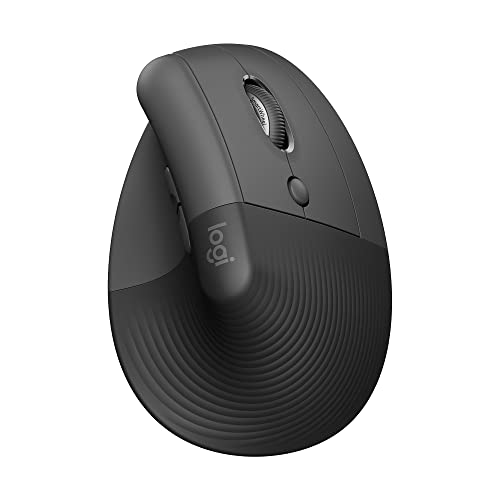
Logitech Lift Vertical Ergonomic Mouse
by Logitech
The best vertical mouse for small to medium hands and the most accessible entry point to vertical mousing — a 57-degree handshake angle with quiet clicks, multi-device pairing, and a price that matches a midrange standard mouse.
Pros
- 57-degree vertical angle puts the wrist in a handshake position rather than the palm-down pronation a flat mouse forces, which directly reduces the static load on the forearm muscles that drives most cumulative wrist strain
- Sized for small to medium hands (under 6.5 to 7.5 inches from base of palm to tip of middle finger) — the missing size point in the vertical-mouse market that the larger MX Vertical does not serve
- Logi Bolt plus Bluetooth dual mode supports three-device Easy-Switch, so a user can move from a work laptop to a personal desktop to an iPad without re-pairing or hunting for a dongle
- Quiet Clicks reduce click noise to a level appropriate for open offices and shared meeting rooms — a feature most vertical mice in this price range do not include
Cons
- Vertical orientation has a 1 to 2 week adaptation curve, particularly for fine cursor work like graphic design or CAD where wrist micro-movements matter; expect a real but temporary speed reduction during the transition
- Right-handed and left-handed versions are sold separately — left-handed users must specifically search for the 'Lift for Left' variant or they will receive the right-handed model
- AA battery rather than USB-C rechargeable, which means you trade the convenience of dockless charging for the reliability of a single replaceable cell
Logitech MX Vertical — Premium Vertical Upgrade for Large Hands
The Logitech MX Vertical is the right vertical mouse for users with large hands — palm width above 4 inches, finger length above 3.5 inches — for whom the smaller Logitech Lift would be a fingertip-grip compromise. The 57-degree vertical angle is the same as the Lift; the chassis is the difference. At a hand size where the Lift no longer supports full palm contact, the MX Vertical’s larger sculpted body delivers the same ergonomic benefit without the fit penalty. This is a fitting decision, not a feature decision — both vertical mice deliver the same ergonomic angle, and the right choice depends on which one fits your hand.
The USB-C rechargeable battery is the feature that makes the MX Vertical the correct upgrade pick rather than a redundant alternative to the Lift. Heavy mouse users — six or more hours of daily mousing — burn through AA batteries at a rate that makes the rechargeable cycle meaningfully more convenient at this usage level. The 1-minute fast charge for one full day of use is the practical detail: when the mouse is dead at the start of a workday, a one-minute USB-C charge gets you through the morning, and the mouse fully recharges during your lunch break. There is no version of this workflow that AA batteries support without keeping a stack of spares on the desk.
Logitech Flow — the software-KVM cursor-sharing feature paired with a Logitech keyboard — is included with the MX Vertical at no additional cost. For users running both a Mac and a Windows machine on the same desk, this is one of the highest-leverage productivity features available at any price. The cursor moves between the two computers as if they shared a single screen, copy/paste works across both machines, and the mental overhead of context-switching between two physical machines is meaningfully reduced. The MX Vertical and the MX Master 3S are the two mice on this list that support Flow; the MX Vertical adds the ergonomic angle.

Logitech MX Vertical Advanced Ergonomic Mouse
by Logitech
The premium vertical mouse for large-handed users and Logi Flow workflows — a 57-degree ergonomic angle, USB-C rechargeable, and software-KVM cursor sharing that makes it the correct upgrade pick for users running both a Mac and a PC on one desk.
Pros
- Sized for large hands (palm width over 4 inches, finger length over 3.5 inches) at a 57-degree angle — the correct vertical mouse for users whose hand anatomy does not fit the smaller Lift, which is a fitting issue most reviews skip
- USB-C rechargeable battery rated up to 4 months per charge with a 1-minute fast charge for one full day of use, eliminating the disposable AA battery cycle a heavy mouse user would otherwise burn through quarterly
- Logitech Flow software pairs the mouse with a second computer running the Logi Options+ companion and lets the cursor move between two computers as if they shared a screen — a software KVM that is genuinely useful for users with both a Mac and a Windows machine on the same desk
- Bluetooth plus Unifying USB receiver supports three-device Easy-Switch, with the Unifying option important for corporate desktops where IT policy blocks Bluetooth pairing entirely
Cons
- At 135 grams and a tall vertical profile, the MX Vertical is larger than most mice in any orientation — users with smaller hands should choose the Logitech Lift instead, where the smaller chassis is a deliberate fit decision rather than a compromise
- Right-handed only with no left-handed variant — left-handed users seeking a vertical mouse must look outside the Logitech ecosystem entirely
- Original 2018 release with no successor as of this update, so while it remains supported and stocked, it is the older generation of Logitech's vertical line
Logitech Ergo M575S — Best Trackball for Persistent RSI Symptoms
The Logitech Ergo M575S is the correct mouse for users whose wrist or shoulder strain has not responded to a vertical mouse — which is a real and underdiscussed cohort of office workers, because the assumption in most ergonomic content is that vertical mousing solves all wrist symptoms universally, and it does not. Vertical mice address forearm pronation, but they still require lateral arm movement to traverse the cursor across a screen. For users whose strain pattern is concentrated in the shoulder, the elbow, or the proximal forearm — patterns driven by sustained lateral arm-sweep motion — a trackball is the next mechanical step. The thumb operates the cursor without moving the wrist or shoulder; the static load shifts to a different muscle group, and the cumulative motion that drives the strain is removed.
The adaptation curve is real: 2 to 3 weeks before cursor precision returns to baseline. During that period, fine cursor work like photo retouching or CAD will feel less precise; for office work — documents, spreadsheets, browsers, project management software, code — the precision is sufficient within the first week. Graphic designers and CAD users should evaluate carefully before switching, because the cursor precision ceiling is genuinely lower than a high-DPI horizontal mouse. For typical office workers, the precision is more than adequate, and the ergonomic benefit accumulates across a workday in a way that no horizontal mouse provides.
The S-revision of the M575 (the M575S released in 2024) added Logi Bolt support to the previous Bluetooth-and-Unifying configuration. In corporate environments standardizing on Logi Bolt as the receiver protocol, this is the difference between a trackball that pairs reliably with a managed work computer and a trackball that does not. For personal-computer use, both the older M575 and the newer M575S work equivalently; for corporate-managed work computers, verify with IT whether Bolt is required, and choose the M575S if it is. Trackball maintenance is a small but real consideration: every 1 to 2 months, lift the trackball out of its cradle and wipe both the ball and the cradle clean of skin oils, which otherwise accumulate and create cursor stutter.

Logitech Ergo M575S Wireless Trackball Mouse
by Logitech
The best office trackball for users with persistent wrist or shoulder symptoms that vertical mice have not resolved — eliminate lateral arm movement entirely while keeping the same Logitech multi-device pairing as the rest of the office lineup.
Pros
- Thumb-operated trackball moves the cursor without moving the wrist or shoulder — the single largest mechanical change a user can make for repetitive strain symptoms that no flat or vertical mouse will solve, because both still require lateral arm movement
- Logi Bolt USB plus Bluetooth dual mode supports multi-device pairing, an upgrade from the older M575 that was Bluetooth or Unifying only and important for corporate machines that require the Bolt receiver protocol
- Sculpted body with a contoured palm rest supports the hand in a static, neutral position for the entire workday — appropriate for users who would otherwise leave their wrist in mid-air over a flat mouse for hours at a time
- Compatible with Windows and macOS with a 24-month AA battery life that aligns with the rest of Logitech's office mouse lineup, so users do not need to manage a different charging cable for the trackball
Cons
- Trackball mousing has a 2 to 3 week adaptation curve and is unsuited for fine-precision work like photo retouching or CAD — the cursor is precise enough for office, project management, and code, but graphic designers should evaluate carefully before switching
- Trackball requires periodic cleaning — every 1 to 2 months, the ball needs to be lifted out and the cradle wiped clean of skin oils, a maintenance step that flat-mouse users do not face
- Right-handed only with the thumb trackball positioned for right-thumb operation — left-handed users will find the M575S unusable in its standard configuration
Logitech M720 Triathlon — Best Multi-Device for Hybrid Workers
The Logitech M720 Triathlon is the dedicated multi-device mouse for users who need three-device Easy-Switch and six programmable buttons but do not need the premium feature set of the MX Master 3S. At under a third of the price of the MX Master 3S, the M720 delivers the same three-device pairing, similar battery longevity (24 months on a single AA), and the same dedicated Easy-Switch button on the side of the mouse. The trade-offs are the older Unifying receiver protocol (rather than the newer Logi Bolt), a 1,000 DPI sensor (rather than 8,000), and a less aggressively sculpted shape that is generally less polarizing but also less specifically supportive than the MX Master.
For the canonical hybrid-worker setup — a work laptop, a personal desktop, and a tablet — the M720 covers all three with a one-button switch. The 6 programmable buttons include thumb back/forward (essential for browser and file-manager navigation, the productivity gap most three-button mice leave open), a dedicated Easy-Switch toggle, and a hyper-fast scroll wheel toggle that moves between ratchet scrolling for precision and free-spin for long documents. The Logitech Options+ software supports per-application button mapping, so the same physical button can do different things in Excel, Chrome, and Slack without the user remembering which mouse profile is loaded.
The Unifying-receiver consideration is the meaningful purchasing decision. For personal-computer use and home office setups, Unifying works identically to Bolt — both are 2.4 GHz proprietary protocols with strong reliability and minimal latency. In corporate environments specifically standardizing on Logi Bolt as the approved receiver protocol, the M720 may not pair reliably or may require an additional Bolt-compatible mouse instead. Verify with your IT department before deploying the M720 across managed work hardware. For most users, this consideration is irrelevant — the M720 will work on the work laptop, the personal desktop, and the tablet without intervention.
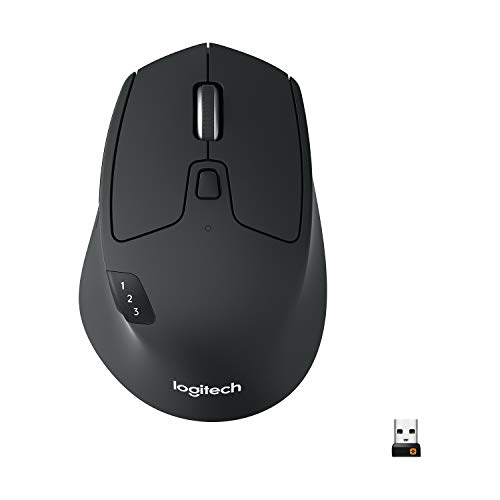
Logitech M720 Triathlon Multi-Device Wireless Mouse
by Logitech
The best dedicated multi-device mouse for hybrid workers who do not need the MX Master 3S premium feature set — three-device pairing, six programmable buttons, and a two-year battery in a sub-fifty-dollar package.
Pros
- Bluetooth and Unifying USB dual mode pairs simultaneously with three devices and switches with a dedicated button — the canonical hybrid-worker setup of work laptop plus personal desktop plus tablet, on one mouse, in one motion
- 24-month battery life on a single AA cell means the mouse outlasts most laptop refresh cycles before needing a battery swap, with no charging cable to forget at the office or at home
- 6 programmable buttons including a dedicated Easy-Switch device toggle and thumb back/forward, with Logitech Options+ software supporting per-application button mapping (different button assignments in Excel versus Chrome versus Slack)
- Hyper-fast scroll wheel toggle covers long documents and spreadsheets quickly while maintaining precision for short scrolls — a meaningful productivity feature for project managers handling long status documents and Gantt charts
Cons
- Original Unifying receiver protocol rather than the newer Logi Bolt — most home and personal-use cases are unaffected, but corporate IT environments standardizing on Logi Bolt may not pair the M720 reliably
- Right-handed sculpted shape — left-handed users will find the M720 uncomfortable, and Logitech does not offer a left-handed variant
- Original 2017 release; while still supported and widely stocked, the M720 is the older generation in Logitech's multi-device lineup
Logitech Pebble Mouse 2 M350s — Best Travel and Secondary Mouse
The Logitech Pebble Mouse 2 M350s answers a specific question that no other mouse on this list addresses well: what is the right second mouse for the laptop bag of a hybrid worker who already has a primary mouse on their desk? At 99 grams in a slim, low-profile shape, the Pebble M350s slides into any laptop bag pocket without the bulk of a full-size office mouse, and at a price that justifies a dedicated travel mouse rather than carrying the primary desk mouse back and forth. For coffee-shop work, conference room hot-desking, hotel rooms during travel, and the back-row seat at any all-hands meeting, the Pebble M350s is the right form factor.
The multi-device feature set is what separates the Pebble Mouse 2 from generic budget travel mice. Bluetooth 5.2 plus Logi Bolt dual mode with three-device Easy-Switch supports the same multi-device workflow as the more expensive MX Master 3S — the MacBook for work plus the Windows laptop for personal use plus the iPad for note-taking, all paired simultaneously, all switchable with a single button. The quiet clicks at the same approximate 90% noise reduction as the M330 Silent are a genuinely useful courtesy feature for cafes, libraries, conference rooms, and any environment where a clicky mouse becomes socially noticeable.
The fit consideration is important to call out honestly: the Pebble M350s is a slim, low-profile mouse, and users with large hands will find it cramped for full-time daily-driver use. This is not a primary desk mouse for a large-handed user; it is a travel and secondary mouse, full stop. For users with small or medium hands, the Pebble M350s is genuinely usable as a primary mouse, particularly for users who prefer a fingertip-grip rather than palm-grip style. Pair it with a USB-C docking station for the laptop side of a hybrid setup, and the mouse, the dock, and the laptop together form a complete portable workstation that fits in a backpack.

Logitech Pebble Mouse 2 M350s Slim Bluetooth Wireless Mouse
by Logitech
The best travel and secondary mouse for hybrid workers — slim enough to live in a laptop bag, multi-device Bluetooth and Logi Bolt support, and quiet clicks for cafes and conference rooms at a price that justifies a second mouse.
Pros
- Slim, low-profile shape weighs 99 grams and slides into any laptop bag pocket without the bulk of a full-size office mouse — the correct second mouse for the laptop bag of a hybrid worker who already has a primary mouse on their desk
- Bluetooth 5.2 plus Logi Bolt dual mode with three-device Easy-Switch supports the same multi-device workflow as the more expensive MX Master 3S, in a portable form factor at a fraction of the price
- Quiet clicks at the same approximate 90% noise reduction as the M330 Silent — appropriate for coffee shops, hot-desks, conference rooms, and the back of any open-plan office where a clicky mouse is socially noticeable
- Single AA battery rated up to 24 months means the mouse you keep in your laptop bag for occasional travel use will not be dead the one time you actually need it, which is the failure mode of every USB-C rechargeable travel mouse
Cons
- Slim profile is a fit compromise — users with large hands will find the Pebble M350s cramped for full-time use; this mouse is designed as a travel and secondary mouse, not a primary daily driver
- 200 to 4,000 DPI ceiling is lower than the MX Master 3S 8K sensor, which is a non-issue for office work but a real limitation for users with multi-4K-monitor setups who want maximum cursor traversal speed
- 4 buttons rather than the 6 of the M720 or 7 of the MX Master — fewer programmable shortcuts available for users who rely on side buttons in browsers and file managers
How to Choose the Best Wireless Mouse for Office Work
Buyer's Guide
Choosing a wireless mouse for office work is less about gaming-mouse benchmarks and more about matching the mouse to your hand, your desk environment, and the specific demands of an office workday — eight hours of cursor work, frequent video calls, and the multi-device reality of modern hybrid setups.
Hand size and grip style
Hand size is the single most underdiscussed variable in mouse selection, because most reviews assume a generic medium-sized hand. Measure from the base of your palm to the tip of your middle finger: under 6.5 inches places you in the small-hand category (the Logitech Lift Vertical and Pebble M350s are sized for this hand); 6.5 to 7.5 inches is medium (most mice on this list, including the MX Master 3S, fit comfortably); above 7.5 inches is large (the MX Vertical is the correct large-hand vertical, while the MX Master 3S still fits at the upper end of the medium range). Grip style matters secondarily: palm grip users (full hand contact with the mouse) benefit from sculpted contoured shapes like the MX Master 3S; claw grip and fingertip grip users (less palm contact) often prefer the lighter, lower-profile feel of the Pebble M350s.
Connection type (Bluetooth vs. 2.4 GHz dongle)
The connection type decision is dominated by one fact most consumer reviews omit: corporate IT environments increasingly disable Bluetooth on managed work computers as a security policy. If you are buying a mouse for a corporate-managed work laptop or desktop, verify Bluetooth availability with IT before assuming it will pair, or default to a model with a USB receiver fallback (Logi Bolt for newer Logitech, Unifying for older). The MX Master 3S, Lift Vertical, MX Vertical, Ergo M575S, M720 Triathlon, and Pebble M350s all support both connection types — the M330 Silent is dongle-only, which is actually an advantage in locked-down corporate environments where Bluetooth is disabled. For personal computers and Macs without IT restrictions, Bluetooth alone is cleaner because you keep the USB-A port free.
Battery (rechargeable vs. replaceable)
Rechargeable lithium batteries (MX Master 3S, MX Vertical) deliver longer single-charge runtime — 70 days and 4 months respectively — and eliminate disposable battery cost over the life of the mouse. The trade-off is that the battery degrades over years of charge cycles, and when it fails the mouse is essentially disposable; the cell is not user-replaceable on either model. AA-battery mice (M330 Silent, Lift Vertical, M575S, M720, Pebble M350s) deliver 24-month runtime on a single cell, and when the cell dies you replace it for a dollar. For users who keep a mouse for five-plus years, the AA-battery models often have lower lifetime cost despite the per-cell expense; for users who refresh tech every 2 to 3 years, the rechargeable convenience outweighs the cost.
Multi-device support
If you work on more than one computer in a typical day — a work laptop and a personal desktop, a Mac for design and a PC for accounting, a desktop and an iPad for note-taking — multi-device pairing is the most underrated productivity feature on this list. Logitech Easy-Switch lets one mouse pair with three devices simultaneously and switch between them with a dedicated button on the bottom of the mouse. Combined with a Logitech keyboard running Logitech Options+, this enables Logitech Flow — a software KVM that lets the cursor move between two computers as if they shared a screen, with copy/paste functional across both machines. The MX Master 3S, Lift Vertical, MX Vertical, M720 Triathlon, and Pebble M350s all support three-device Easy-Switch.
Silent clicks for open offices and video calls
Click noise was a non-issue when most knowledge work happened in private offices, but the open-office floor plan and the always-on video call environment have made it a meaningful courtesy concern. A standard mouse click registers around 60 to 65 decibels — clearly audible across a meeting room and on a video call microphone with active noise gating off. Quiet-click mice (M330 Silent, MX Master 3S, Lift Vertical, Pebble M350s on this list) reduce the click noise by approximately 90% to a level that is inaudible at conversational distance. This is a professional-courtesy issue more than a personal-comfort one — your meeting participants stop hearing the cadence of your cursor clicks during their presentation, and your calls feel more present because the keyboard-and-click layer of audio is removed.
Ergonomics (standard, vertical, or trackball)
There is a clinical progression for users with cumulative wrist or forearm symptoms that no single mouse style addresses universally. Standard horizontal mice (MX Master 3S, M720, Pebble M350s) are the baseline; they are correct for users without symptoms and for users who have not previously tried alternative mouse styles. Vertical mice (Lift Vertical for small-to-medium hands, MX Vertical for large hands) rotate the wrist into a handshake angle that reduces forearm pronation and the static load on the forearm muscles — this is the correct first step when a flat mouse is causing forearm fatigue or pronation discomfort. Trackball mice (Ergo M575S) eliminate the lateral arm movement entirely by replacing wrist motion with thumb motion — this is the correct step when shoulder or elbow symptoms persist after a vertical mouse has not fully resolved them. None of these is a clinical substitute for an occupational therapy or physician evaluation; if your symptoms are persistent or worsening, the mouse change is one input alongside chair height, desk height, monitor distance, and break frequency.
Best Ergonomic Wireless Mouse
If a flat mouse is causing forearm fatigue, wrist strain, or shoulder discomfort, the right ergonomic mouse depends on your hand size and where your symptoms actually concentrate. The Lift Vertical is the most accessible entry point for small-to-medium hands, the MX Vertical is the correct large-hand vertical, and the Ergo M575S trackball is the next step when vertical mousing has not resolved shoulder or elbow strain because it eliminates lateral arm movement entirely. All three are reviewed in full above.
| Product | Price | Buy |
|---|---|---|
| Logitech Lift Vertical Ergonomic MouseBest ergonomic for most A 57-degree handshake angle sized for small to medium hands with quiet clicks and three-device Easy-Switch — the most accessible first step into vertical mousing for forearm pronation relief. | $63.49 | View on Amazon |
| Logitech MX Vertical Advanced Ergonomic MouseBest premium vertical The same 57-degree angle in a larger chassis for big hands, plus USB-C recharging and Logi Flow cursor sharing — the premium vertical for heavy users running both a Mac and a PC. | $74.99 | View on Amazon |
| Logitech Ergo M575S Wireless Trackball MouseBest trackball (no arm movement) A thumb-operated trackball that moves the cursor without moving the wrist or shoulder — the right choice when vertical mice have not resolved more proximal shoulder or elbow strain. | $39.99 | View on Amazon |
For most users new to ergonomic mice, the Lift Vertical is the right starting point. Choose the MX Vertical if you have large hands or want Logi Flow, or the Ergo M575S trackball if your strain is in the shoulder or elbow rather than the wrist.
Best Wireless Mouse for Work & Office
For all-day office work, the variables that matter most are quiet clicks for video calls, multi-device pairing for the work-laptop-plus-personal-computer reality, and a corporate-IT-friendly receiver fallback for managed machines. The MX Master 3S is the strongest all-around work mouse, the M720 Triathlon is the dedicated multi-device pick at a lower price, and the M330 Silent is the quiet budget option that corporate IT deploys at scale. All three are reviewed in full above.
| Product | Price | Buy |
|---|---|---|
| Logitech MX Master 3S Performance Wireless Mouse (Graphite, Bolt Receiver)Best for all-day work Quiet clicks, an 8K sensor that tracks on glass conference tables, and three-device Easy-Switch — the office mouse that solves the most problems without a weakness in any single dimension. | $118.99 | View on Amazon |
| Logitech M720 Triathlon Multi-Device Wireless MouseBest multi-device for work Three-device pairing and six programmable buttons at under a third of the MX Master 3S price — the dedicated multi-device pick for hybrid workers who do not need the premium feature set. | $32.99 | View on Amazon |
| Logitech M330 Silent Plus Wireless MouseBest quiet budget pick Roughly 90% click-noise reduction with a two-year AA battery and a USB dongle that works where corporate IT disables Bluetooth — the default office IT pick at scale. | $16.14 | View on Amazon |
For most office workers, the MX Master 3S is the right all-day choice. Choose the M720 Triathlon if multi-device pairing matters more than the premium features, or the M330 Silent if quiet clicks on a tight budget are the priority.
Best Wireless Mouse for Mac & MacBook
Mac and MacBook users want clean Bluetooth pairing, multi-device switching between a MacBook and a desktop or iPad, and quiet clicks for FaceTime and video calls. The MX Master 3S is the strongest Mac productivity mouse with full macOS support and Logi Options+, the Lift Vertical adds an ergonomic angle for Mac users with wrist symptoms, and the Pebble M350s is the slim Mac travel mouse. All three are reviewed in full above.
| Product | Price | Buy |
|---|---|---|
| Logitech MX Master 3S Performance Wireless Mouse (Graphite, Bolt Receiver)Best Mac productivity mouse Full macOS support with Logi Options+ and Flow, quiet clicks for video calls, and three-device switching between a MacBook, an iMac, and an iPad — the best all-around Mac mouse. | $118.99 | View on Amazon |
| Logitech Lift Vertical Ergonomic MouseBest ergonomic for Mac A 57-degree vertical angle with Bluetooth and Easy-Switch and iPadOS support — the ergonomic Mac mouse for users with forearm or wrist symptoms on a MacBook setup. | $63.49 | View on Amazon |
| Logitech Pebble Mouse 2 M350s Slim Bluetooth Wireless MouseBest slim Mac travel mouse A slim, low-profile Bluetooth mouse with macOS, iPadOS, and ChromeOS support — the right travel mouse to keep in a MacBook bag for cafes and conference rooms. | $24.99 | View on Amazon |
For most Mac users, the MX Master 3S is the strongest productivity choice. Choose the Lift Vertical if you want an ergonomic angle on your Mac, or the Pebble M350s as a slim travel companion for a MacBook.
Best Wireless Mouse for Laptops & Travel
For laptop and travel use, the priorities are a slim form factor that fits a bag, quiet clicks for shared spaces like cafes and conference rooms, and a battery that will not be dead the one time you need it. The Pebble M350s is the slim travel pick, the M330 Silent is the quiet budget laptop mouse, and the M720 Triathlon adds full multi-device switching for users who carry a laptop between two setups. All three are reviewed in full above.
| Product | Price | Buy |
|---|---|---|
| Logitech Pebble Mouse 2 M350s Slim Bluetooth Wireless MouseBest slim travel mouse A 99-gram slim profile that slides into any laptop bag, quiet clicks for cafes and hot-desks, and a 24-month AA battery that will not die in transit — the right second mouse for the bag. | $24.99 | View on Amazon |
| Logitech M330 Silent Plus Wireless MouseBest quiet budget for laptops Plug-and-play quiet clicks with a two-year AA battery at one of the lowest prices on this list — the simple, reliable laptop mouse for users who want a dongle and nothing to recharge. | $16.14 | View on Amazon |
| Logitech M720 Triathlon Multi-Device Wireless MouseBest multi-device for laptops Three-device Easy-Switch with six programmable buttons and a two-year battery — the laptop mouse for users who move between a work laptop, a personal desktop, and a tablet. | $32.99 | View on Amazon |
For most travelers, the Pebble M350s is the right slim companion. Choose the M330 Silent for the simplest quiet budget option, or the M720 Triathlon if you switch between multiple machines on the road.
Best Wireless Mouse for Small Hands
Hand size is the variable most mouse reviews ignore, and it matters most for users with smaller hands who end up fingertip-gripping a mouse that is too large to use comfortably for eight hours. Of the mice on this list, the slim Pebble M350s and the compact, lightweight M330 Silent are the two that suit smaller hands best — the larger sculpted and vertical mice are sized for medium-to-large hands. Both are reviewed in full above.
| Product | Price | Buy |
|---|---|---|
| Logitech Pebble Mouse 2 M350s Slim Bluetooth Wireless MouseBest compact for small hands A slim, low-profile 99-gram shape that suits a fingertip grip and smaller hands, with Bluetooth, Logi Bolt, and quiet clicks — the most comfortable small-hand pick on this list. | $24.99 | View on Amazon |
| Logitech M330 Silent Plus Wireless MouseBest lightweight budget A compact 91-gram body with a simple three-button layout and a two-year AA battery at one of the lowest prices here — the lightweight budget pick for smaller hands that want a dongle and quiet clicks. | $16.14 | View on Amazon |
For small-handed users, the Pebble M350s is the most comfortable fit, with the M330 Silent as the lighter, simpler budget alternative. Users with medium-to-large hands should look to the sculpted MX Master 3S or the vertical options reviewed above.
Final Verdict
After evaluating wireless mice across the full spectrum of office and hybrid-work use cases, the Logitech MX Master 3S remains our top recommendation for most desk workers in 2026. Its combination of Quiet Clicks for video-call courtesy, an 8,000 DPI sensor that tracks on every surface a professional actually encounters, three-device Easy-Switch for the hybrid-worker reality, and Logitech Flow software-KVM cursor sharing addresses the most important problems an office mouse needs to solve, and does so without specific weakness in any single dimension. For users on a tighter budget who still want the open-office quiet-click acoustic profile, the Logitech M330 Silent Plus is the correct pick — it is the same mouse hospitals, law firms, and corporate IT departments standardize on at scale, and there is good reason for that.
For users with cumulative wrist or forearm symptoms, the right mouse depends on hand size and symptom pattern: the Logitech Lift Vertical for small-to-medium hands and most users new to vertical mousing, the Logitech MX Vertical for large hands and users running Logitech Flow workflows, and the Logitech Ergo M575S trackball for users whose symptoms have not responded to a vertical mouse and whose strain is more proximal in the shoulder or elbow. None of these is a substitute for an occupational therapy or physician evaluation if your symptoms are persistent or worsening — choose the mouse that fits your anatomy and your workday, integrate it into a well-considered desk setup that includes the right keyboard and proper desk surface, and the result is a workstation that compounds in the right direction over years of use rather than the wrong one.
Frequently Asked Questions
What is the best wireless mouse for working from home?
Should I choose a Bluetooth or USB dongle wireless mouse for office work?
Do wireless mice work well for all-day office use, or do they lag and skip?
Which wireless mouse helps with wrist pain or RSI symptoms?
Can one wireless mouse work with my work laptop and personal computer at the same time?
Are these wireless mice good for gaming?
Related Articles
About the Reviewer

Sarah Chen, CAP, PMP
B.A. Business Administration, UCLA
Sarah Chen spent 10 years in office management and operations at Fortune 500 companies before founding DeskRated in 2026. After managing supply budgets for teams of 50+ people and testing thousands of products through daily use, she started writing the honest, no-fluff supply reviews that office professionals actually need. Sarah holds both CAP and PMP certifications and is based in Los Angeles.