How to Set Up the Perfect Home Office: A Step-by-Step Guide
Sarah Chen, CAP, walks through how to design a productive, ergonomic home office — from choosing the right space to budget tiers and document workflow.
Updated
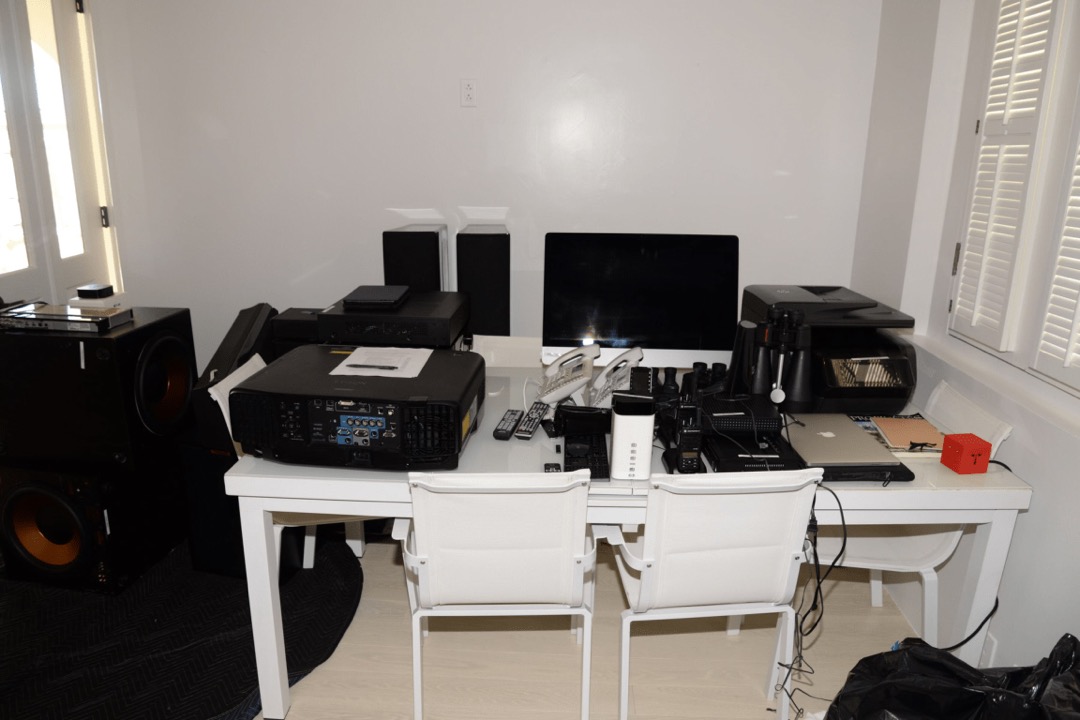
When I first set up my home office, I made every mistake I now help other people avoid. I bought the desk first, the chair last, ignored the lighting entirely, and ended up with a cable mess that took three months to untangle. The setup looked fine for the first week. By month two, my back hurt and I had a stack of unopened mail on the corner of the desk that had grown into a small monument.
Setting up a home office well is not really about products. It is about making decisions in the right order, with the right priorities, and with realistic expectations about how the space will actually be used. After several years coordinating workspace setups across distributed and hybrid teams as a Certified Administrative Professional, I have a process that consistently produces a workspace people are still happy with two years in. This guide walks through it.
Step 1 — Choose the Right Space
Before you buy any equipment, decide where the office will live. The single biggest predictor of a productive home office is whether you can physically separate the work area from the rest of your home life. A dedicated room with a door that closes is ideal. The act of closing the door at the end of the day creates a transition between work mode and personal mode that no software boundary can replicate.
If a separate room is not an option — and for most renters and apartment dwellers it is not — pick a defined corner of a room and commit to it. A corner near a window is preferable. A privacy screen, a bookshelf, or even a small area rug can mark the boundary. Avoid the temptation to “float” between the kitchen counter, the dining table, and the couch. Inconsistent location prevents your brain from associating any single spot with focused work, which makes both starting the workday and stopping it harder than it should be.
One specific layout decision matters more than buyers expect: orient your desk so a window is to your side, not in front of you and not behind you. Facing the window puts a bright outdoor scene directly behind your monitor and forces your eyes to constantly recalibrate between two very different brightness levels — that is what causes the eye fatigue most people blame on screen time. With your back to the window, the same window throws glare directly onto your screen. Side light is the right answer.
Step 2 — Build Your Ergonomic Foundation
Three pieces of equipment do most of the work in determining whether your body feels good at the end of an eight-hour workday: chair, desk, and monitor placement. Spend the largest share of your budget here.
Start with the chair. The right chair has adjustable seat height, adjustable lumbar support, adjustable armrests, and a seat depth that fits your leg length. The 90-90-90 rule is the simple ergonomic baseline: elbows at 90 degrees, hips at 90 degrees, knees at 90 degrees with feet flat on the floor. A chair that prevents you from achieving those three angles will quietly accumulate damage. Our roundup of the best office chairs covers options across budgets.
Desk height is the second decision. The standard sitting desk height of 28–30 inches works for most people if the chair is adjusted correctly underneath. The harder question is whether to invest in a sit-stand option. The research on prolonged sitting is consistent enough that alternating between sitting and standing is worth pursuing — but the choice between a full standing desk and a sit-stand converter on top of an existing desk is more nuanced than the marketing suggests. We break it down in detail in our standing desks vs. sit-stand converters comparison. Quick rule of thumb: if your existing desk is solid and your setup is laptop-plus-one-monitor, a converter delivers most of the benefit at a fraction of the cost.
Monitor height is the third foundation decision and the one most people get wrong. The top of your screen should sit at or just below eye level when you are looking straight ahead. Almost every monitor ships sitting too low — manufacturers ship them that way because that is what fits in the box. Either a monitor arm (more flexible, frees up desk surface) or a monitor stand (cheaper, simpler) will get the screen to the right height. Do not skip this; looking down at a screen all day is what creates the neck fatigue people associate with desk work generally.
If you use a sit-stand desk for any length of time, add an anti-fatigue mat underneath. Standing on a hard floor for two hours feels fine for the first week and develops into foot, knee, and lower-back fatigue over a few months.
A final ergonomic note for keyboard users: a flat keyboard on a hard desk surface is what causes wrist strain over time, not “typing” in general. A wrist-friendly setup needs two things — a keyboard wrist rest for support, and ideally an ergonomic keyboard that lets your wrists rest in a more neutral position. A desk mat underneath gives your forearms a softer landing surface and helps anchor cables that exit the keyboard and mouse.
Step 3 — Get Your Lighting Right
Lighting is the cheapest upgrade in a home office and the one that most directly affects how tired you feel at the end of the day. Layer it.
Daytime: the side window from Step 1 does most of the work. Sheer curtains or adjustable blinds let you soften direct sunlight on bright days without losing the daylight entirely. Daylight is the closest match to the lighting your eyes evolved for, and it is genuinely energizing in a way that artificial light is not.
Evenings and overcast days: a good adjustable desk lamp with a warm-to-cool color temperature setting is the workhorse. Position it so the light falls on your work surface from the side opposite your dominant hand — that prevents your hand from casting a shadow on what you are reading or writing. A target brightness of 500–1,000 lux at the desk surface is right for detailed work; many adjustable lamps now include a built-in lux meter to help you calibrate.
Video calls: the most-overlooked lighting decision in any home office. A lamp positioned in front of you at roughly face height transforms how you appear on camera. A lamp behind you silhouettes your face into a dark shape, which is what makes most home-office video calls look unprofessional. A small ring light on the back of the monitor or a desk lamp aimed at your face from the side of the camera both work; the absolute requirement is light in front, not behind.
Step 4 — Set Up Your Technology Stack
The best technology setup is the one you stop noticing. Friction in your tech stack — disconnecting and reconnecting cables, hunting for the right adapter, fighting Bluetooth pairing — adds up across a workweek into hours of lost time.
The single most useful purchase for a laptop-based home office is a USB-C docking station. A good dock connects your laptop to monitor, keyboard, mouse, headphones, ethernet, and power with a single USB-C cable. Coming home, plugging in once, and immediately having every peripheral connected transforms ten daily steps into one. If you also work at a coffee shop or a coworking space some days, a dock is what makes the home setup actually portable.
Headphones come second. Noise-canceling headphones serve two functions: they remove the household background noise that pulls your attention without you noticing, and they signal to anyone else in the home that you are in focused-work mode. For video calls, a pair with a good built-in microphone covers most needs without adding a separate mic to the desk.
Webcam and call presence: if you spend any meaningful time on video, position the camera at or just above eye level. A webcam mounted on top of a monitor that is itself at the right height gets this right automatically. A laptop camera looking up at you from below your face does not. The fix is either a monitor-mounted external webcam or a laptop stand that raises the laptop screen to monitor height.
Step 5 — Tackle Cables and Clutter
A messy desk is rarely a productivity problem on its own. It is a symptom of an unsolved organization problem.
Cable management trays and sleeves keep the dozen or so cables that any modern setup generates from becoming a tangled mess underneath the desk. Mount a tray under the desktop, route power and data cables through it, and use velcro wraps to bundle anything that must travel down to the floor. The before-and-after is genuinely transformative — the desk feels lighter even though nothing on the surface has changed.
Surface clutter follows a simple rule: only what you use today belongs on the desk. A small desk organizer for the four or five items you genuinely use daily — pen, notepad, sticky notes, headphone hook, charging cable — keeps the working surface clear without exiling them to a drawer where you cannot find them. Everything else goes in a drawer, on a shelf, or in the filing system from the next step.
Step 6 — Set Up a Document Management System
This is the section every home office guide skips, and the section that quietly causes the most ongoing frustration if you skip it. Every home office accumulates paper: bills, contracts, tax documents, receipts, warranty cards, instruction manuals, school forms. Without an explicit system, paper piles on the desk and never leaves.
The framework I use with every workspace is a three-tier system, set up before you need it.
Inbox: a single physical tray for everything that arrives at your desk. Mail, printouts, receipts. Every piece of paper goes here first. Process the inbox once or twice a week, never on the day it arrives.
Scan-and-shred: a document scanner sits next to the inbox. Documents you might need digitally — receipts, statements, signed contracts, school forms — get scanned to a labeled folder in the cloud, then shredded. The sheet-fed scanners common today take seconds per page and eliminate the “I need to keep this paper just in case” problem entirely.
Physical archive: a small filing cabinet or expanding file folder for the small percentage of documents that genuinely need to exist as physical originals — birth certificates, deeds, wills, vehicle titles. Most households need less than three inches of physical filing depth once the scan-and-shred process is running. The volume problem is almost entirely a workflow problem, not a storage problem.
The goal of the system is that every piece of paper has a defined next step within thirty seconds of arriving at your desk. Once that is true, the desk surface stays clear without ongoing willpower.
Budget Tiers — What to Prioritize First
Buyers come to home office setup with very different budgets. The right priorities depend on which tier you are in.
Around $300 (essentials only). Spend it on the chair first. A meaningful chair upgrade from whatever you are currently sitting on does more for your workday than any other single purchase at this budget. Add an adjustable desk lamp and a small set of cable management ties. Skip the standing desk, the second monitor, and the docking station for now.
Around $800 (committed remote worker). The chair upgrade is still the foundation. Add a sit-stand converter on top of your existing desk, a single external monitor with a basic monitor arm, and a pair of noise-canceling headphones. This tier gets you most of the ergonomic and productivity benefits of a fully built-out home office.
Around $1,500 to $2,000 (power setup). A motorized standing desk replaces the converter. Add a second monitor, a USB-C docking station, an ergonomic keyboard with a wrist rest, an anti-fatigue mat for standing time, and a document scanner. This is the tier where every component contributes to a noticeable productivity gain over the previous tier.
The mistake most buyers make at any tier is over-investing in monitors and peripherals before fixing the chair. A $1,500 budget poured into a four-monitor video-editor setup with a $150 chair will produce a worse workday than a $400 chair with a single 27-inch monitor and a basic dock. The chair is the foundation everything else sits on top of.
A Final Word on Iteration
A home office is rarely right on day one. Plan to refine the setup over the first three months — adjust the chair, raise the monitor, reroute the cables, redo the filing system. The setup that works in week one almost always needs small corrections by week six. Build in the assumption of iteration rather than treating the initial purchase as final, and you will end up with a workspace you actually like working in two years from now.
Frequently Asked Questions
Should my home office desk face a window or a wall?
What is the 90-90-90 rule for home office ergonomics?
How many monitors do I really need for a home office?
Do I really need a standing desk, or is a sit-stand converter enough?
What is the single most important upgrade for long hours at a desk?
Related Articles
About the Reviewer

Sarah Chen, CAP, PMP
B.A. Business Administration, UCLA
Sarah Chen spent 10 years in office management and operations at Fortune 500 companies before founding DeskRated in 2026. After managing supply budgets for teams of 50+ people and testing thousands of products through daily use, she started writing the honest, no-fluff supply reviews that office professionals actually need. Sarah holds both CAP and PMP certifications and is based in Los Angeles.