How to Set Up Dual Monitors: Ports, Cables, Windows 11 and Mac Settings, and Fixes
How to set up dual monitors step by step: check ports and cables, connect both screens, configure Windows 11 or macOS, fix scaling and solve detection issues.
Updated
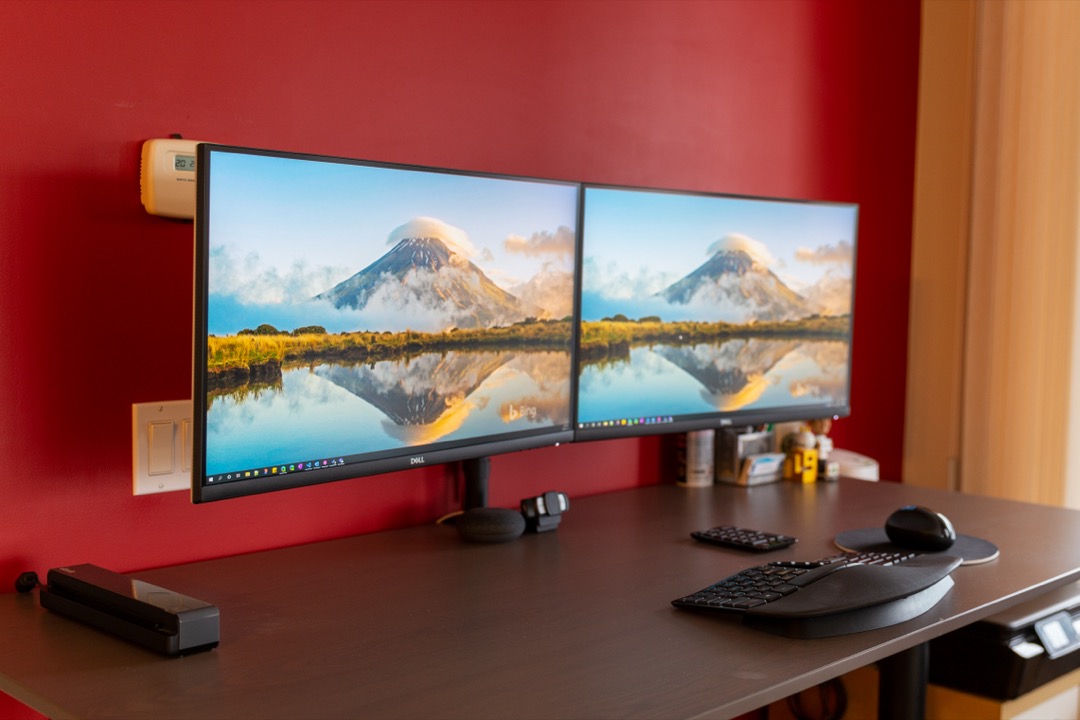
Every time I onboarded a new remote hire, the second monitor arrived in a box and the setup call followed a day later. The hardware was rarely the issue. The trouble was a laptop with one HDMI port, a cable from the monitor box that didn’t fit the computer, a second screen that Windows insisted on mirroring, or two displays arranged left to right in settings when they sat right to left on the desk, so the mouse vanished off the wrong edge. Each of those takes two minutes to fix once you know where to look.
This guide covers how to set up dual monitors the way I did it when I coordinated equipment for distributed teams as a Certified Administrative Professional, from checking ports to a troubleshooting table for the screen that won’t show up. If you haven’t bought the monitors yet, our guide to choosing a monitor setup covers single versus dual versus ultrawide and which size to buy. For chair, desk and screen measurements, see the ergonomic desk setup guide.
The Windows steps below are for Windows 11. Microsoft ended support for Windows 10 on October 14, 2025, so its menus aren’t covered here.
What You Need Before You Start
Check your computer’s video outputs
Look at the ports on your computer before you buy a single cable. You need one video output per monitor, and three port types can provide one:
- HDMI, the wide, flat port found on most laptops, desktops and nearly every monitor.
- DisplayPort, common on desktop graphics cards and business monitors. The full-size version has one angled corner.
- USB-C and Thunderbolt, which carry video only when the port supports DisplayPort Alternate Mode (often shortened to alt mode). Thunderbolt ports support it. A plain USB-C port may handle only data and charging, so look for a DisplayPort or lightning-bolt symbol beside it, or check the spec sheet.
Then check the inputs on each monitor. On a desktop with a separate graphics card, plan to use the card’s ports, not the ones on the motherboard.
Cables and adapters
Match each cable to the port on both ends. A direct cable (HDMI to HDMI, DisplayPort to DisplayPort, or USB-C to HDMI or DisplayPort) is more reliable than a chain of adapters. If your monitor supports a high refresh rate or 4K, make sure the cable is rated for it, because an old cable from the drawer can hold a new monitor back.
If your laptop has only one HDMI port
This is the question I got most often. There are three ways around it:
- Use a USB-C or Thunderbolt port for the second monitor. If the port supports alt mode, a single USB-C to HDMI or USB-C to DisplayPort cable gives you a second, independent display.
- Use a docking station. One cable runs from the laptop to a USB-C docking station, which provides several video outputs plus charging, USB and network ports. Confirm the dock extends the desktop on your operating system, because some multi-monitor docks only mirror on a Mac.
- Daisy chain over DisplayPort. With DisplayPort Multi-Stream Transport (MST), the computer connects to the first monitor and the first monitor feeds the second through its DisplayPort out port. Your computer’s output and both monitors must support MST. Macs do not support MST for extended displays, so on a Mac a daisy chain gives you the same picture twice.
An HDMI splitter won’t solve this. It sends one image to both screens, so you get a mirrored copy and no second desktop.
Check your Mac’s display limit
Every Mac has a maximum number of external displays, and limits differ by chip and model. To find yours, open Apple menu > System Settings > Help > [your Mac] Specifications and look under Display Support or Video Support. For example, the MacBook Air with M4 or M5 supports up to two external displays alongside its built-in display, and Apple notes that closing the lid does not increase the number of external displays. The base 14-inch MacBook Pro with M5 also supports up to two external displays. For any other model, check the Specifications page.
Connect the Monitors
Do the physical work in this order:
- Mount the screens first. Arms have cable channels and change how much cable length you need. I put most two-screen setups on monitor arms because matching two heights is easier, but a pair of identical monitor stands works fine when the monitors are the same model.
- Plug in power. Two monitors plus a computer or dock means at least three plugs. A desk power strip with USB ports mounted within reach keeps everything on one surge-protected switch.
- Connect the video cables. Run one cable from each monitor to the computer or the dock.
- Turn on the monitors, then the computer. If a screen says “No signal,” use the buttons on the monitor itself to select the input you plugged into.
- Route and secure the cables. Leave slack where an arm swings or a desk rises, then clip the rest along the arm and under the desk. Good cable management keeps a dual setup from snagging when you pull your chair in.
Set Up Dual Monitors in Windows 11
- Open Start > Settings > System > Display. You’ll see a numbered box for each connected screen.
- Select Identify. A large number appears on each physical monitor so you know which box is which.
- Drag the boxes so they match how the monitors sit on your desk, including their height relative to each other, then select Apply. If the boxes are in the wrong order, your mouse will leave the screen from the wrong side.
- Press Windows key + P and choose Extend if both screens show the same thing. The other options are PC screen only, Duplicate, and Second screen only.
- Set your main display. Select the monitor you’ll look at most, expand Multiple displays, and tick Make this my main display. If the box is greyed out, that monitor is already the main one.
The Multiple displays section also holds Detect, Connect (for a wireless display), and two settings I turn on for every laptop user who docks: Remember window locations based on monitor connection and Minimize windows when a monitor is disconnected.
Set Up Dual Monitors on a Mac
- Open the Apple menu > System Settings > Displays.
- Select Arrange. This button only appears when an external display is connected.
- Drag the display icons to match how the screens sit on your desk.
- To choose your main display, drag the white menu bar at the top of one display icon onto the other.
- To set a display’s role directly, select it and use the Use as menu to choose extended display, mirror, or main display.
Holding Option while dragging one display onto another in Arrange mirrors them. If that happens by accident, set Use as back to extended display.
If a connected display doesn’t appear at all, hold the Option key in Displays settings. The Night Shift button changes to Detect Displays.
Fix Mismatched Scaling, Resolution and Refresh Rate
Two different monitors rarely look the same out of the box. A laptop panel next to a 27-inch monitor, or a 1080p screen next to a 1440p one, will show text at different sizes, and windows can jump in size as you drag them across.
On Windows, select each display on the Display page and look under Scale & layout. Set the display resolution to the one Windows marks as recommended, which is usually the panel’s native resolution, then adjust Scale until text looks roughly the same size on both screens. Windows asks you to Keep changes and reverts if you don’t confirm.
On a Mac, select each display in Displays and choose the resolution or scaled option that makes text comfortable on that screen.
Refresh rate is set per monitor too. On Windows, open Display > Advanced display and pick the rate for each screen. On a Mac, use the Refresh Rate menu for each display in Displays. The two can run at different rates. Just confirm a new high-refresh monitor isn’t sitting at a lower default.
When the budget allows, I buy matching pairs, which removes most of this fiddling.
Taskbar and Window Behavior
In Windows 11, go to Settings > Personalization > Taskbar and expand Taskbar behaviors. Two settings matter here. Show my taskbar on all displays puts a taskbar on both screens. The second setting, for when you use multiple displays, controls where app buttons appear: on every taskbar, or only on the taskbar of the screen where each window is open. I prefer a taskbar on both screens, with each app shown on the taskbar where its window lives.
On a Mac, the menu bar sits on whichever display you’ve made the main one. Drag the white bar in Arrange to move it.
Position the Two Screens
OSHA’s computer workstation guidance gives the starting numbers for any monitor: the top of the screen at or slightly below eye level, a viewing distance of 20 to 40 inches (at least 20), the screen tilted back 10 to 20 degrees, no monitor farther than 35 degrees to the left or right, and screens placed perpendicular to windows to cut glare. OSHA doesn’t address multi-monitor layouts specifically, so the two arrangements below are my own recommendations from setting up a lot of workstations.
Main plus secondary. If you spend most of the day on one screen, center that main monitor directly in front of you and place the second off to the side, angled in toward you. This suits most office work.
Equal use. If you split your time evenly between the two screens, center the seam where the bezels meet directly in front of you and angle both monitors in toward you.
In both layouts, keep the top edges at the same height. If one of the two screens is your laptop, raise it on a laptop stand so its screen lines up with the external monitor, and use a separate keyboard and mouse. A monitor light bar clipped to the main screen is designed to light the desk without throwing glare back onto the panel. If you work at a standing desk, check that the desk’s weight capacity covers both monitors and the arm, and raise it through its full range once to confirm no cable pulls tight at the top.
Second Monitor Not Detected: Symptoms and Fixes
Work down the table from the top.
| Symptom | Likely cause | Fix |
|---|---|---|
| Monitor shows “No signal” | Wrong input source selected on the monitor | Use the monitor’s own buttons to select the input you plugged into |
| Monitor stays black, no message | Loose or faulty cable | Reseat the cable at both ends, then try a different cable |
| Computer doesn’t list the second screen | It hasn’t re-scanned for displays | Windows: Settings > System > Display > Multiple displays > Detect. Mac: hold Option in Displays and click Detect Displays |
| Nothing appears over USB-C | The port doesn’t carry video | Check for a DisplayPort or Thunderbolt symbol or the maker’s spec sheet, or use another port |
| Desktop PC shows nothing on a motherboard port | A separate graphics card is installed | Plug the monitor into the graphics card’s ports instead |
| Both screens show the same image (Windows) | Display mode set to Duplicate | Press Windows key + P and choose Extend |
| Both screens show the same image (Mac) | Displays mirrored, or a daisy chain or splitter in use | Set Use as to extended display; connect each monitor to its own port or a dock that extends on macOS |
| A Mac drives one external screen but not the next | Over the Mac’s external display limit | Check System Settings > Help > Specifications under Display Support or Video Support |
| Text is blurry or oversized on one screen | Wrong resolution or scale | Set the recommended resolution and adjust Scale under Scale & layout (Windows), or choose a scaled option in Displays (Mac) |
| Motion looks choppy on a high-refresh monitor | Refresh rate left at a low default | Windows: Display > Advanced display. Mac: Refresh Rate menu in Displays |
| Windows pile onto the laptop after undocking | Window memory turned off | Turn on Remember window locations based on monitor connection under Multiple displays |
If none of this works, update your computer’s operating system and graphics drivers, then test the monitor on another computer.
Wrapping Up
A working dual-monitor setup comes down to sequence. Confirm your ports and display limit, buy cables that match end to end, mount the screens before cabling, then set the arrangement, main display and scaling in one sitting. For laptop users, the best upgrade is a dock that turns the desk into one cable, paired with a dual monitor arm that keeps both screens level.
Frequently Asked Questions
What cables do I need to set up dual monitors?
Can I run two monitors off one HDMI port?
Is daisy chaining monitors worth it, and does it work on a Mac?
Should I get two 27-inch monitors or one 32-inch monitor or ultrawide?
Why is my second monitor not detected?
Related Articles
Complete Guide to Choosing the Right Monitor Setup: Single, Dual, Ultrawide, and How to Match Screens to Your Work
office-technology
10 Best Monitor Light Bars of 2026
office-technology
7 Best Cable Management Solutions of 2026
desk-setup-furniture
11 Best Desk Power Strips with USB of 2026
desk-setup-furniture
9 Best Laptop Stands of 2026
ergonomic-accessories
About the Reviewer

Sarah Chen, CAP, PMP
B.A. Business Administration, UCLA
Sarah Chen spent 10 years in office management and operations at Fortune 500 companies before founding DeskRated in 2026. After managing supply budgets for teams of 50+ people and testing thousands of products through daily use, she started writing the honest, no-fluff supply reviews that office professionals actually need. Sarah holds both CAP and PMP certifications and is based in Los Angeles.