Keyboard Switch Types Explained: Linear, Tactile, Clicky, and Silent
Sarah Chen, CAP, explains every keyboard switch type — linear, tactile, clicky, silent, optical, and Hall effect — with the actuation force and noise numbers that matter in a shared office.
Updated
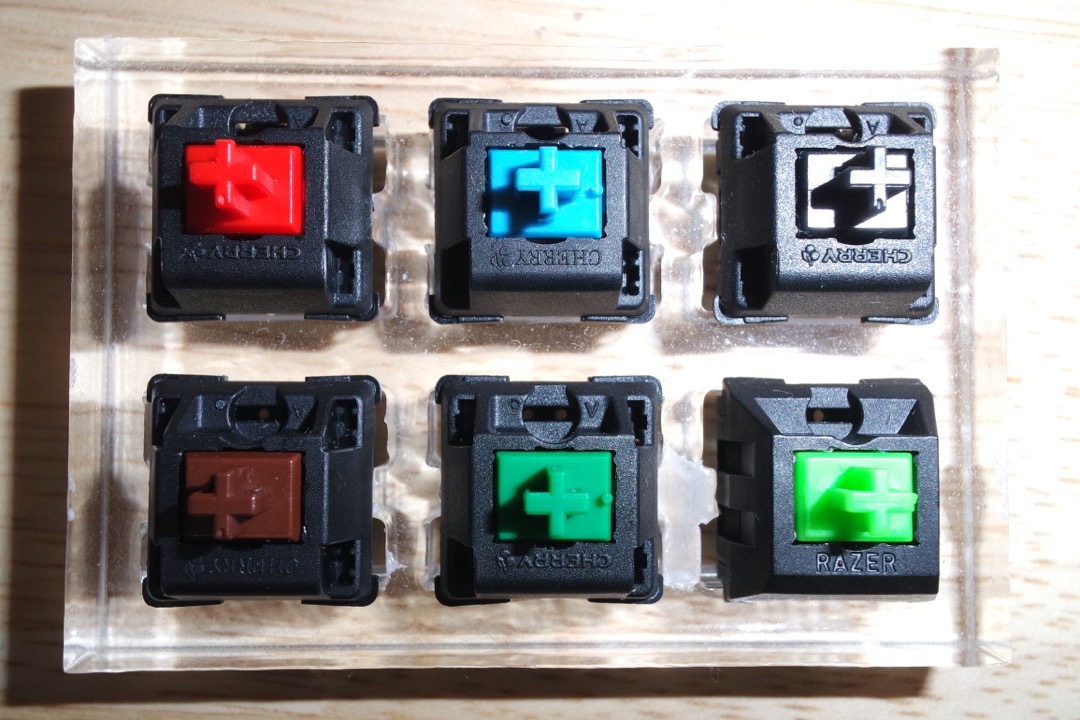
Walk into any conversation about keyboards and within about a minute someone will tell you their switches are brown, as though that settles something. For most people it settles nothing, because nobody ever explained what the colors mean, why there are dozens of them, or which of the differences actually matter once you are typing eight hours a day in a room with other people in it.
I have spent several years as a Certified Administrative Professional specifying and buying equipment for office teams, and keyboards generate more complaints per dollar than almost anything else on the desk. The complaints fall into two piles. One pile is from the person typing: sore fingers by mid-afternoon, keys that miss or double, a board that feels mushy and vague. The other pile is from everyone sitting nearby, and it is always about noise. Both piles usually trace back to a single decision that was made without any information: which switch is under the keycaps.
This guide covers every switch type you will realistically encounter, what the color codes actually mean, and the two numbers — actuation force and travel distance — that predict how a keyboard will feel long before you touch one. Most guides on this topic are written for gaming, so they optimize for speed and treat noise as a personality trait. I am going to optimize for the thing office workers actually need: a keyboard you can type on all day without your hands hurting and without your colleagues quietly resenting you. If you are assembling a full workspace rather than solving one problem, this pairs with our ergonomic desk setup guide and the broader home office setup walkthrough.
What a Keyboard Switch Actually Is
A switch is the mechanism under each keycap that registers the press. On a mechanical keyboard, every key has its own self-contained switch: a plastic housing, a spring, a stem that slides down when you press, and a pair of metal contacts that meet to complete the circuit. Press the key, the stem travels down, the contacts touch, the character appears.
That per-key independence is the whole point of a mechanical keyboard, and it explains most of the differences people notice. Because each key has its own spring, the feel is consistent across the board rather than mushier in the middle where a rubber sheet has worn thin. Because the parts are discrete, they are rated for tens of millions of presses rather than a few million. And because the spring and stem can be varied independently, manufacturers can offer the same keyboard in a dozen different feels.
The alternative is a membrane keyboard, where all the keys press down onto a shared rubber sheet with printed circuits underneath, and the collapse of a rubber dome both provides the resistance and completes the contact. Scissor-switch keyboards, which is what almost every laptop and most slim desktop keyboards use, are a refinement of that idea with a small hinged mechanism that stabilizes the keycap and shortens the travel. These are not automatically inferior. A good scissor keyboard is quiet, low-profile, and genuinely comfortable for the kind of intermittent typing most office roles actually do. The reason mechanical keyboards dominate the conversation is that they are the only category where you get to choose the feel.
The Two Numbers That Predict How a Switch Feels
Before the colors, learn the two specifications, because they let you evaluate any switch on any spec sheet without ever having touched it.
Actuation force is how much pressure the key needs before it registers, measured in grams. The common range runs from about 35 grams at the very light end to around 80 grams at the heavy end, with most office-appropriate switches sitting between 45 and 60 grams. Lighter switches take less work per keystroke, which matters more than it sounds: a fast typist produces several thousand keystrokes in a working day, so a fifteen-gram difference per press compounds into real finger fatigue by the afternoon. Lighter switches are also easier to trigger accidentally, which is the tradeoff — very light switches punish resting your fingers on the home row.
Travel distance is how far the key moves. Full-size mechanical switches typically travel about 4 millimeters total and register somewhere around the 2 millimeter mark, meaning the key registers roughly halfway down. Low-profile switches cut both figures roughly in half, and scissor keyboards are shorter still. Shorter travel feels faster and takes less finger movement; longer travel feels more deliberate and gives you more room to stop before hitting the bottom. Neither is better, but people moving from a laptop to a full-travel mechanical board frequently describe it as tiring at first, and short travel is the reason why.
The single most useful concept attached to travel is bottoming out — driving the key all the way to the base after it has already registered. Since the key registers around halfway, the last two millimeters of force accomplish nothing except noise and impact into your fingertips. Most people bottom out on nearly every keystroke out of habit carried over from membrane keyboards, where you have to. Learning to stop at the actuation point is the closest thing to a free upgrade in typing comfort, and it quiets the keyboard dramatically. A keyboard wrist rest helps here by keeping your hands at a height where a light touch is natural rather than something you have to concentrate on.
The Three Main Switch Types
Nearly every mechanical switch made falls into one of three families, defined entirely by what happens during the press.
Linear Switches
Linear switches move straight down with completely smooth, uniform resistance. There is no bump, no click, and no event of any kind — the force increases gradually as the spring compresses, and at some point along the way the key registers without telling you. Cherry MX Red, Black, and Yellow are the reference examples, and red is the default linear switch that most manufacturers ship.
Linear switches are the quietest of the three families, since nothing inside is designed to produce feedback, and they are the fastest to press repeatedly because there is no bump to push past. That combination is why they dominate gaming.
For office work they are a reasonable choice with one specific caveat. Because nothing signals that the key registered, your fingers get no confirmation, so most people compensate by pressing all the way down every time. That reintroduces the impact and noise you were trying to avoid, and it is why some people find that linear switches, on paper the quiet option, end up sounding louder in practice than a tactile switch typed on lightly. If you have a light, disciplined touch, linear is excellent. If you are a firm typist, the bump of a tactile switch will serve you better.
Tactile Switches
Tactile switches place a small bump partway through the travel, positioned at roughly the point where the key registers. You feel a distinct catch and then a release, and then the key continues to the bottom if you let it. Cherry MX Brown is the archetype, and brown has become the generic shorthand for a tactile switch across nearly every brand.
That bump is doing real work. It confirms the keypress through your fingertip rather than through your ears or eyes, which means you can trust that a character registered without watching the screen, and it gives you a natural place to stop the press. Both effects reduce typing errors and reduce bottoming out.
For general office typing, tactile is the type I recommend by default. It gives you the accuracy benefit of feedback without the acoustic penalty of a click, and the bump on a typical brown switch is subtle enough that it does not slow you down. The common criticism from enthusiasts is that standard brown switches have a weak, slightly gritty bump compared with premium tactile switches, which is fair, but it is a complaint about refinement rather than function.
Clicky Switches
Clicky switches produce the tactile bump and add a dedicated mechanism — usually a click bar or a two-piece click jacket inside the housing — whose only job is to make a sharp audible snap at the moment of actuation. Cherry MX Blue and Green are the standard examples, with green being a heavier version of blue.
They are, genuinely, delightful to type on. The click is crisp, the feedback is unmistakable, and a lot of people who write for a living love them. They also deserve their reputation. The click is not a side effect that better engineering could remove; it is the entire purpose of a separate mechanism, and it fires on every keystroke, including the ones you regret.
In a shared workspace, clicky switches are the single most common source of keyboard conflict I have dealt with, and the problem is not just the person at the next desk. On a video call, a headset microphone sits close enough to pick up every click and transmit it to everyone on the call, which is distracting in a way that most people using the keyboard never hear for themselves. If your work involves meetings, this matters more than the desk-neighbor question — even a good office headset with decent noise suppression struggles with a sound that sharp and that close. Clicky switches are a fine choice in a home office with a door. In an open-plan room, they are a choice you are making on other people’s behalf.
Silent Switches: The Shared-Office Answer
Silent switches are linear or tactile switches with rubber or silicone dampening built into the stem, cushioning both the downstroke where the key hits bottom and the upstroke where it returns. Cherry MX Silent Red and Silent Black are the common examples, and most enthusiast brands offer silenced versions of their popular switches.
They are the most underrated category for office use, and they work by targeting the right noise. The loudest part of typing on most keyboards is not the switch mechanism at all — it is the hard plastic impact at the end of the travel, top and bottom. Dampening that impact removes the sharpest, most carrying part of the sound, which is exactly the part that travels across a room and into a microphone.
The tradeoffs are honest and worth knowing. Silent switches feel slightly softer and less crisp at the bottom of the press, because the dampener is by design absorbing the impact you would otherwise feel — some people describe it as mushy, though most stop noticing within a week. They also cost a little more, and on a tactile silent switch the dampening can slightly soften the bump.
If you work in an open-plan office or take calls from a shared home, a silent tactile switch is the configuration I would buy without hesitation. Pair it with a soft surface under the board — a desk mat absorbs a genuinely surprising amount of the resonance that a bare hard desk turns into a drum — and the keyboard largely disappears from everyone else’s awareness. If the room itself is the problem rather than your keyboard, noise-canceling headphones solve the reverse direction of the same issue.
Optical and Hall Effect Switches
Two newer sensing technologies come up often enough to be worth explaining, mostly so you can recognize when they are irrelevant to you.
Optical switches replace the metal contacts with an infrared beam across the housing. Pressing the key moves the stem into the beam’s path, and breaking or unblocking the light registers the press. Because nothing metal touches, there is no contact bounce for the firmware to filter out, which removes a small amount of latency, and there is no contact wear, which is why optical switches often carry higher lifespan ratings.
Hall effect switches, sometimes called magnetic switches, put a magnet in the stem and a sensor in the housing, and read the magnet’s distance continuously as the key moves. Because the board knows the exact position of the key rather than just pressed or not pressed, you can set the actuation depth per key in software, change it whenever you like, and assign different actions at different depths of the same key.
Both are legitimately clever, and Hall effect in particular is the most interesting thing to happen to keyboards in years. Neither will do anything for you at work. Adjustable actuation depth and a fraction of a millisecond of latency are competitive gaming features; typing a document does not benefit from either. Critically, the sensing technology does not determine how the switch feels or sounds — the spring weight, the stem material, and the housing do, exactly as with a mechanical switch. An optical linear switch feels like a linear switch. Buy these for the durability rating or because you want to tune your actuation point for fun, not in the belief that they will improve your typing.
Decoding the Color Code
The colors are an informal convention rather than a standard, but the convention is followed closely enough to be useful. Cherry established it, and most manufacturers now follow it so their switches are legible to buyers.
Red is the default light linear, around 45 grams. Black is the heavy linear, around 60 grams. Yellow usually sits between the two. Brown is the standard light tactile, around 45 to 55 grams. Clear is a heavier tactile with a more pronounced bump. Blue is the standard clicky, around 50 to 60 grams. Green is the heavy clicky. Silent variants usually carry the base color with the word silent attached.
Two warnings about relying on this. First, the convention only holds across the standard product lines — the enthusiast market has produced hundreds of switches with names like Boba, Panda, and Cream whose colors follow no scheme at all, so with those you read the spec rather than the color. Second, and more practically, color parity across brands does not guarantee equivalence. One manufacturer’s brown can have a noticeably weaker bump and a different spring weight than another’s, so a color tells you the family reliably and the exact feel only approximately. When it matters, read the actuation force in grams. That number does not lie.
Choosing a Switch for How You Actually Work
Working through the decision the way I do when specifying for a team:
If you share an open-plan office, choose a silent tactile switch in the 45 to 55 gram range. You get feedback for accuracy, the dampening removes the carrying part of the sound, and the light weight keeps your hands fresh. This is the safest recommendation in this entire guide.
If you take a lot of video calls, the same answer applies with more urgency, because the microphone is closer to the keyboard than any colleague is. Avoid clicky switches outright.
If you have a private room and write for a living, clicky switches are genuinely worth trying. The feedback is excellent and the enjoyment is real. Just be honest about whether that room is as private as you think during meetings.
If your hands tire or ache by the afternoon, go lighter before anything else — drop toward 45 grams and work on stopping short of bottoming out. Switch weight is the most commonly overlooked contributor to hand fatigue. If the ache is in your wrists rather than your fingers, the problem is more likely posture than switches, and our ergonomic keyboard roundup covers the split and tented layouts that address it.
If you mostly do data entry on a numpad, a heavier tactile switch around 60 grams reduces mistakes, since numeric entry punishes accidental presses much more than prose does.
If you are not sure, buy a switch tester. They cost a few dollars, hold nine or so switches in a small block, and let you feel every option in a minute. If your keyboard is described as hot-swappable, you can pull switches out and push new ones in without soldering, which turns the choice into something reversible. Several of the boards in our best mechanical keyboards roundup are hot-swappable for exactly this reason, which makes them the low-risk place to start if you have never typed on a mechanical switch for a full working day.
One last note on the wider setup: switches are only one variable in how a keyboard feels. Board height, typing angle, and where your hands sit relative to the screen all affect comfort at least as much, which is why a perfect switch on a badly positioned keyboard still leads to sore hands. Get the monitor and desk geometry right first, and match the mouse to the same hand position, and the switch choice becomes the refinement it should be.
The Short Version
Mechanical switches come in three families. Linear is smooth and quiet with no feedback. Tactile adds a bump where the key registers. Clicky adds a bump and a deliberate, loud click. Silent variants of linear and tactile add internal dampening that removes the sharp impact noise. Optical and Hall effect describe how the press is detected rather than how it feels, and neither matters much for office work.
Read the actuation force in grams rather than trusting the color, since 45 to 55 grams suits most typists and heavier switches cost you real comfort over a full day. Learn to stop the key at the actuation point instead of driving it into the base, which will do more for both comfort and noise than any purchase. And if you share a room with anyone, pick a silent tactile, put a soft mat under the board, and the whole question stops being anyone else’s problem.
Frequently Asked Questions
Which keyboard switch is better — red, blue, or brown?
What type of keyboard switch is best for office typing?
How do I know what switch type my keyboard has?
Are mechanical keyboards too loud for an office?
Are optical and Hall effect switches worth it for work?
Related Articles
7 Best Noise Canceling Headphones for Office of 2026
office-technology
7 Best USB Headsets of 2026
office-technology
Complete Guide to Choosing the Right Monitor Setup: Single, Dual, Ultrawide, and How to Match Screens to Your Work
office-technology
7 Best Keyboard Wrist Rests of 2026
ergonomic-accessories
8 Best Desk Mats of 2026
desk-setup-furniture
About the Reviewer

Sarah Chen, CAP, PMP
B.A. Business Administration, UCLA
Sarah Chen spent 10 years in office management and operations at Fortune 500 companies before founding DeskRated in 2026. After managing supply budgets for teams of 50+ people and testing thousands of products through daily use, she started writing the honest, no-fluff supply reviews that office professionals actually need. Sarah holds both CAP and PMP certifications and is based in Los Angeles.