Work From Home Essentials Checklist: What to Set Up, In What Order
Sarah Chen, CAP, PMP, builds a remote-work setup from scratch the way an office-operations pro would — the right order to buy, an ergonomics foundation, budget tiers, multi-person household logistics, and the tax rules that actually apply.
Updated
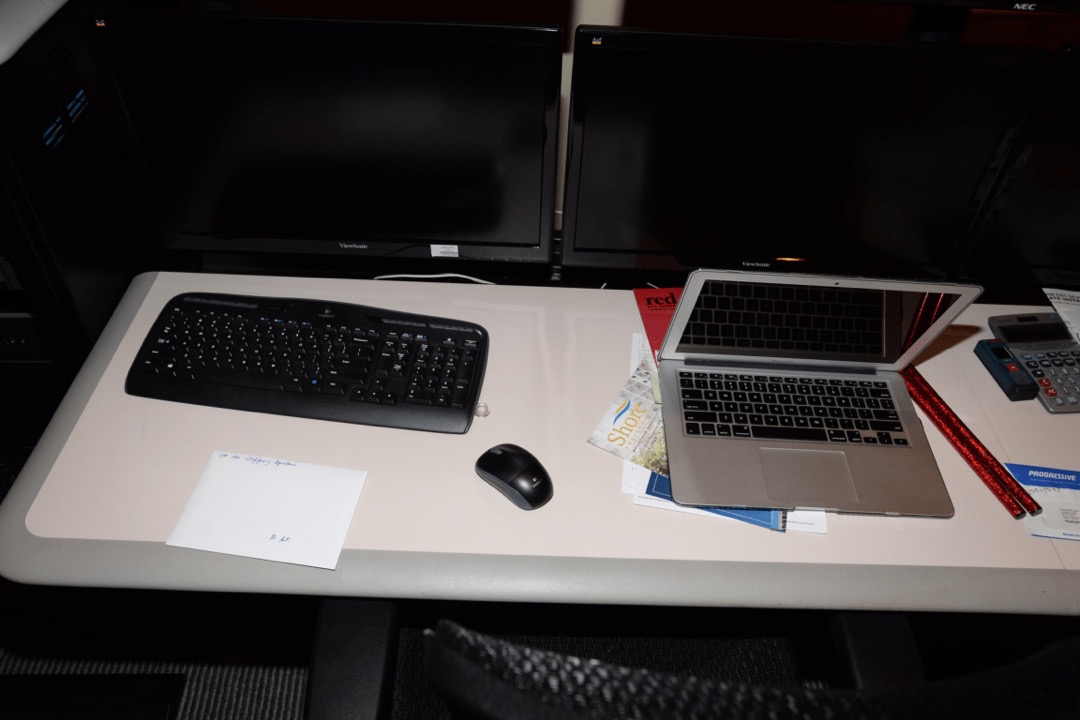
Most work-from-home guides are shopping lists. You scroll through forty numbered products, add a dozen to a cart, and end up with a setup that is somehow both over-bought and missing the one thing that would have made the biggest difference. After years coordinating workspace setups for distributed teams — first as a Certified Administrative Professional running office operations, then managing the logistics of moving teams to fully remote — I can tell you the problem is almost never which products you buy. It is the order you buy them in, and whether you got the foundation right before you reached for the upgrades.
This is not a list of forty things to buy. It is the sequence I use to build a remote setup from nothing, the same way I would scope any project: foundation first, upgrades second, and a clear-eyed look at the budget and the household before a single order is placed. Whether you have $200 or $2,000 to spend, the order is the same — and the budget table near the end maps exactly what to prioritize at each tier.
Before You Buy Anything — Ask Your Employer First
The first step costs nothing and saves more money than any deal you will find. Before you spend a dollar of your own, find out what your employer covers.
Remote-first companies increasingly offer home-office stipends, commonly between $500 and $1,500, and many hybrid employers will reimburse specific equipment — a monitor, a chair, a desk — even without a formal program. The catch is that almost nobody asks. Email HR or your manager and get three things in writing: whether there is a stipend or reimbursement budget, which categories qualify, and what documentation (itemized receipts, a specific vendor, a pre-approval form) they require. If the answer is a $1,000 stipend, you have just funded most of a complete setup. If the answer is nothing, you have lost only the two minutes it took to ask.
One note for the self-employed and 1099 contractors reading this: there is no employer to ask, but there is a tax angle that partly takes its place. Skip to the tax section near the end before you start spending — how you document the setup from day one affects what you can deduct at year-end.
The Right Order to Build Your Setup
Here is the build sequence. If you do nothing else from this guide, do these ten things in this order. Each step assumes the one before it is handled, which is exactly how a setup should come together.
- A reliable internet connection — ideally wired ethernet from the router to your computer. This is the foundation under everything else.
- A chair with real lumbar support. You are in contact with it all day; it is the highest-impact health purchase on the list.
- Your screen at eye level — a laptop stand if you are on a laptop, or a monitor raised so its top third meets your eye line.
- An external keyboard and mouse so your hands work at desk height while the screen stays at eye level. A wireless mouse and an ergonomic keyboard untether you from the laptop’s cramped layout.
- A front-facing light source for video calls — a desk lamp positioned at monitor height, not overhead.
- A dedicated space your brain associates with work, even if it is just one corner that is only ever used for work.
- An external monitor to end the all-day squint at a 13-inch laptop panel.
- Noise-canceling headphones or a quality headset — a USB headset for clean call audio, or noise-canceling headphones for focus in a noisy house.
- A webcam upgrade above the laptop’s built-in camera, for the calls where presence matters.
- The organization layer — desk mat, organizers, and cable management that keep the surface clear and the workday calm.
Notice that the first six steps are mostly about ergonomics and connectivity — the foundation — and the last four are upgrades to comfort and presence. The order is deliberate. Spend down the list, not up from the bottom.
Ergonomics — The Foundation Layer
Ergonomics is health spending disguised as office furniture. Get it right and an eight-hour day ends neutral; get it wrong and the damage compounds quietly over months into neck, wrist, and lower-back pain. The good news is that most of it is free to fix if you already own halfway-decent equipment — it is about position, not just product.
The chair is the anchor. You want adjustable seat height, lumbar support that meets the curve of your lower back, and armrests that let your shoulders relax rather than hunch. A chair is the one item I tell people never to cheap out on, because it is the only thing on the list you are in continuous physical contact with for the entire workday. Our roundup of the best office chairs walks through what actually distinguishes a chair worth keeping for a decade from one that sags in a year.
The desk should be at least 47 inches wide and 24 inches deep to hold a monitor at arm’s length plus a keyboard and mouse with room to spare. If the budget reaches it, a sit-stand desk lets you alternate between sitting and standing across the day, which does more for energy and back comfort than any single accessory — see the best standing desks for models that hold height steadily under a full monitor load. If you do stand, add an anti-fatigue mat; standing on a hard floor for hours is its own kind of strain.
The monitor belongs with its top third at your eye level and roughly an arm’s length away, so your neck stays neutral instead of craning down. A monitor arm is the most flexible way to get there and frees up the desk surface underneath; a fixed monitor stand is the simpler, cheaper path to the same eye-level result.
The keyboard and wrists should let your elbows rest near ninety degrees with your wrists straight, not bent up toward the keys. An ergonomic keyboard encourages a more neutral hand angle, and a keyboard wrist rest supports the heel of your hand during the pauses between typing. Your feet should rest flat on the floor; if they dangle, a footrest restores the support your chair height took away.
For a deeper walk-through of dialing in every angle and height, our ergonomic desk setup guide covers the measurements in detail. When money is tight, fix all of this with what you already own first — books under a laptop, a rolled towel for lumbar support — before buying anything new.
Lighting — The Most Underrated Variable
Lighting is the cheapest upgrade with the most visible payoff, and almost every checklist buries it. Two things matter: how well you can see your work, and how you look on camera.
Position your desk perpendicular to a window rather than facing it (which throws glare across your screen and silhouettes your face on calls) or backed to it (which blows out your camera into a bright window behind you). A window to the side gives soft, even light without either problem.
For task lighting, an adjustable desk lamp with selectable color temperature lets you run cool, focused light for detail work and warmer light later in the day. The same lamp does double duty as call lighting if you place it at roughly monitor height, slightly to one side, aimed at your face rather than the wall — front lighting at eye level is what separates a clear, professional video feed from a shadowy one lit only by the screen.
One side note for dry climates and winter heating season: a small desk humidifier keeps the air from drying out your eyes and throat over a long day at the screen. It is a comfort item, not a foundation item, but it earns its place once the rest of the setup is dialed in.
Tech and Connectivity
This is the layer where a wired backbone quietly does most of the work. Start with the connection: aim for at least 25 Mbps download and 5 Mbps upload for a single person on HD calls, and 100 down / 20 up if two people share the household and the calls. Upload speed is the number that actually carries your camera and microphone, and it is the one most people forget to check. Whatever your plan, run a wired ethernet cable from the router to your computer for anything call-heavy — it is a ten-dollar purchase that eliminates the most common cause of mid-meeting freezes.
An external monitor of at least 24 inches ends the all-day squint at a laptop panel and is the upgrade most remote workers say they would never give back. Mount it on a monitor arm to keep the desk clear and the height adjustable. When you are working off the laptop alone — at the kitchen table, traveling, or before the monitor arrives — a laptop stand lifts the screen to eye level so you are not hunching over it.
A wireless mouse is worth it for the desk space and the freedom of movement; the small reliability cost of wireless does not matter for a pointer the way it does for a video feed. Tying it all together, a USB-C docking station runs power, the wired ethernet, the external monitor, and every peripheral through a single cable to the laptop — so docking and undocking is one connector, not seven. For anyone who moves a laptop between a home desk and anywhere else, the dock is the accessory that makes the whole setup feel permanent.
Video Call Presence
For most remote roles, the video call is where your colleagues actually experience your setup. It is worth getting three things right: the camera, the audio, and the background.
The camera should be 1080p at minimum and placed at eye level, not angled up from a laptop sitting flat on the desk (the unflattering up-the-nose angle is the most common avoidable mistake on calls). A dedicated webcam mounted on top of your monitor solves both the resolution and the height in one step.
Audio matters more than video — colleagues forgive a grainy picture far faster than they forgive having to ask you to repeat yourself. A USB headset gives clean, consistent call audio with a boom mic positioned near your mouth, while noise-canceling headphones double as both call audio and a focus tool that mutes a noisy household between meetings. Either is a major step up from a laptop’s built-in microphone picking up the room.
The background is the third variable, and the free one — what is visible behind you reads as part of your professionalism. A clean, uncluttered wall or a tidy shelf beats a virtual background, which still glitches around your shoulders on most setups. One practical tip from years of onboarding remote staff: do a test call with a colleague before your first official week. Ninety percent of camera, audio, and lighting problems surface in the first ten minutes of a real call, and you would much rather find them in a test than in front of your new team.
Organization — Keeping the Desk Clear
A cluttered desk is a low-grade tax on focus that you pay all day without noticing. The organization layer is the last thing to buy, but it is what makes the setup feel finished and keeps it that way.
A desk mat anchors the visual space and gives the keyboard and mouse a defined home; our picks for the best desk mats cover the surfaces that hold up to daily use. A small set of desk organizers gives every pen, cable, and sticky pad a place to return to, which is the whole secret to a desk that stays clear. And cable management — a single afternoon of routing and clipping the tangle behind the desk — is the unglamorous project that pays back every day you do not have to fish a charger out of a knot of wires.
For the planning layer, many people who work digitally still keep a physical planner or notebook for the day’s priorities, because writing the three things that matter by hand sticks in a way a calendar notification does not. And for anyone handling physical documents — especially the self-employed — a paper shredder for sensitive mail, a filing cabinet for the records that have to live on paper, and a document scanner for going paperless faster round out a setup that handles real office work, not just calls.
If Two People Work From Home
Everything above assumes one person in a reasonably quiet house. The moment a second remote worker enters the picture — a partner, a roommate, or kids home on break — the setup becomes a coordination problem, and it is the one that no shopping list addresses. After helping several two-remote-worker households sort this out, here is what actually works.
Bandwidth is the first constraint. Each simultaneous HD-to-4K video call wants roughly 25 Mbps of upload, so two people on calls at once need a plan with at least 50 Mbps of upload headroom — and most budget internet plans are sized for download, not upload. Check the upload number specifically before assuming your connection can carry two calls.
Acoustics are the second. The immediate fix is a good pair of noise-canceling headphones for each person, which stops one person’s call from bleeding into the other’s. The medium-term fix is scheduling: share calendars so you can see each other’s call-heavy blocks and avoid stacking two loud meetings at the same time in adjacent rooms. If you both have a recurring 10 a.m. call, one of you takes the quiet room and the other takes headphones and a wall to face.
Shared peripherals are the third. Decide whether a single printer, scanner, and shredder live in a common area that both people walk to, or whether each workspace gets its own — usually the common-area approach wins on cost and clutter. And if the two of you are in genuinely separate rooms, small comfort items like a second desk humidifier or independent task lighting stop one person’s environment preferences from becoming a negotiation. One last note for the self-employed: two dedicated home offices under one roof can increase the square footage that qualifies for the home office deduction — which is a good segue to the tax rules.
A Note on Home Office Tax Deductions
This is the question that generates more confusion than any other, and the answer hinges entirely on how you are paid.
If you are a W-2 employee, you cannot deduct home office expenses on your federal return — not the desk, not the chair, not a share of the internet bill — even if you work remotely full time. The deduction for unreimbursed employee expenses that used to cover this was eliminated by the 2017 Tax Cuts and Jobs Act and made permanent under the 2025 budget law. This is exactly why the “ask your employer first” step matters so much for employees: reimbursement is the only realistic way to recover the cost.
If you are self-employed, a freelancer, or a 1099 contractor, you can still deduct the portion of your home used regularly and exclusively for business. There are two methods. The simplified method is a flat five dollars per square foot, up to 300 square feet, for a maximum deduction of $1,500. The actual-expense method lets you deduct a proportional share of rent or mortgage interest, utilities, internet, and office supplies based on the percentage of your home’s square footage the office occupies — more paperwork, often a larger deduction.
The rule that trips people up is exclusive use: the space has to be used only for business. A desk in a corner that doubles as the family homework station generally does not qualify; a spare room used solely as an office does. The practical move is to set this up correctly from day one — photograph your dedicated workspace, measure its square footage, and keep itemized receipts for everything you buy off this checklist in a single folder. None of this is tax advice, and the rules have nuances a CPA will catch; treat it as a flag to raise the question, not as the final answer.
Build It in Sequence
A work-from-home setup is not a cart you fill in one sitting — it is a project you scope, sequence, and build out as the budget allows. Get the foundation right first: a stable connection, a chair that supports you, and your screen at eye level. Layer the upgrades on from there — the monitor, the headset, the webcam, the organization — in the order that matches how your actual job runs. Ask your employer before you spend, size the internet for everyone who shares the house, and document the setup if you are self-employed.
Do it in that order and you end up with a workspace that fits the work, instead of a drawer full of accessories that never quite came together. For the deeper dial-in on posture and desk height, start with our ergonomic desk setup guide; when you are ready to put real numbers to the plan, the office supply budget guide maps where the money goes.
Frequently Asked Questions
What should I buy first for my work-from-home setup?
Can I deduct home office expenses on my taxes?
What internet speed do I actually need to work from home?
How do two people work from home in the same house without driving each other crazy?
How much does it cost to set up a proper home office?
Related Articles
About the Reviewer

Sarah Chen, CAP, PMP
B.A. Business Administration, UCLA
Sarah Chen spent 10 years in office management and operations at Fortune 500 companies before founding DeskRated in 2026. After managing supply budgets for teams of 50+ people and testing thousands of products through daily use, she started writing the honest, no-fluff supply reviews that office professionals actually need. Sarah holds both CAP and PMP certifications and is based in Los Angeles.